AUDIO ROUTING
Why Sonar switches your audio to a monitor
Decide when Sonar should fall back to another output, which devices remain eligible, and which channels should share that choice.
Source check: November 20, 2026 | By David Bennett
Read the decision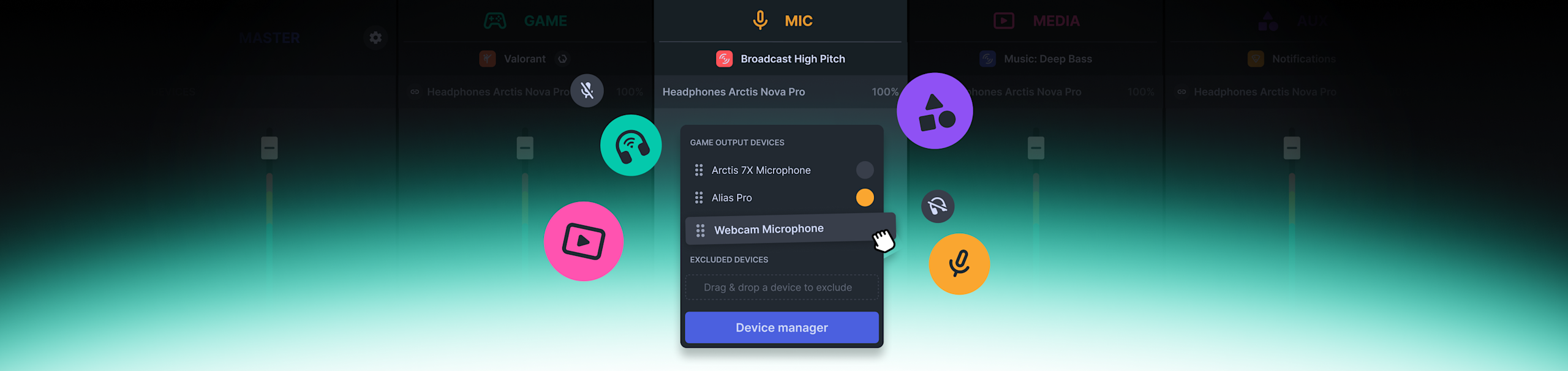
SteelSeries’ official Device Manager illustration. This is promotional artwork, not a Gamer-Z test capture.
Credit: SteelSeries. Official source
If Sonar sends sound to your monitor when your headset turns off, check Backup Device Switch first. Auto can choose another eligible output; Manual stops automatic switching. Use priority to choose an acceptable backup and Excluded Devices to keep an unwanted monitor out of that channel’s fallback list.
Start with the channel, then name the hardware
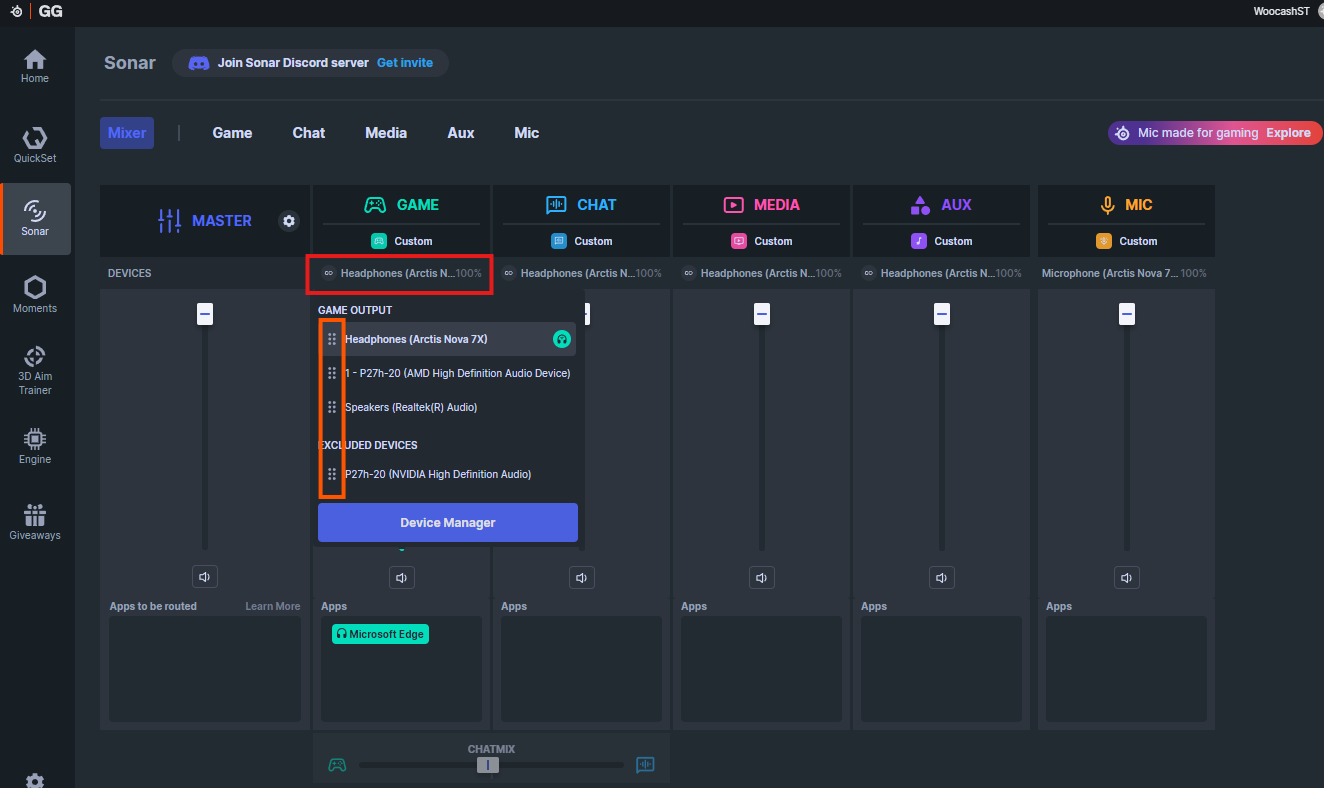
Before changing anything, open GG, select Sonar and note which mixer channel is affected. Game sound and chat can follow different routes. A Windows output named SteelSeries Sonar — Game is a software audio channel; it is not the headset or monitor itself. Sonar sends that channel onward to a physical playback device. That distinction matters when Windows still shows the expected Sonar output but the sound comes from your display.
In Sonar, inspect the device shown for the affected channel and open its Device Manager. Have the intended headset or speakers connected before configuring the list: current support says configuration shows active or connected devices. Record the current channel, selected hardware, backup mode, priority and exclusions before changing them. A screenshot gives you a useful reference if you want the previous arrangement back.
Credit: SteelSeries. Official source
Choose whether losing the headset should move the sound
Auto and Manual answer different questions. SteelSeries describes Auto as moving playback to an available backup when the headset shuts off or disconnects. Manual stops that automatic change. If you want speakers to take over when you put the headset away, Auto fits that intention. If you want to choose the destination yourself, Manual is the relevant policy to inspect.
That choice is about routing, not a repair for a faulty headset. Manual does not promise audible sound from hardware that is switched off. Decide whether automatic fallback is desirable before editing the fallback list; otherwise you may solve an unwanted monitor switch by removing the convenient speaker fallback you actually wanted. Keep the previous setting in your notes and change one part of the arrangement at a time.
Priority means next choice; exclusion means ineligible
When automatic fallback is wanted, arrange the Playback Devices list around the hardware you would actually accept. SteelSeries documents dragging entries to change their priority. Put the preferred backup first rather than assuming the order follows the last device you used. Check the displayed names carefully: a monitor can appear under a graphics or display-audio label rather than the name printed on its bezel.
An output lower in the list is still a potential destination. If a particular monitor must never become a backup for that channel, move its entry to Excluded Devices instead of merely moving it down. Exclusion is a Sonar routing preference, not an instruction to uninstall a graphics driver or disable Windows audio devices. Keep any intentional speaker fallback eligible so you retain the behavior you chose.
Credit: SteelSeries. Official source
Keep separate channel routes unless you want them shared
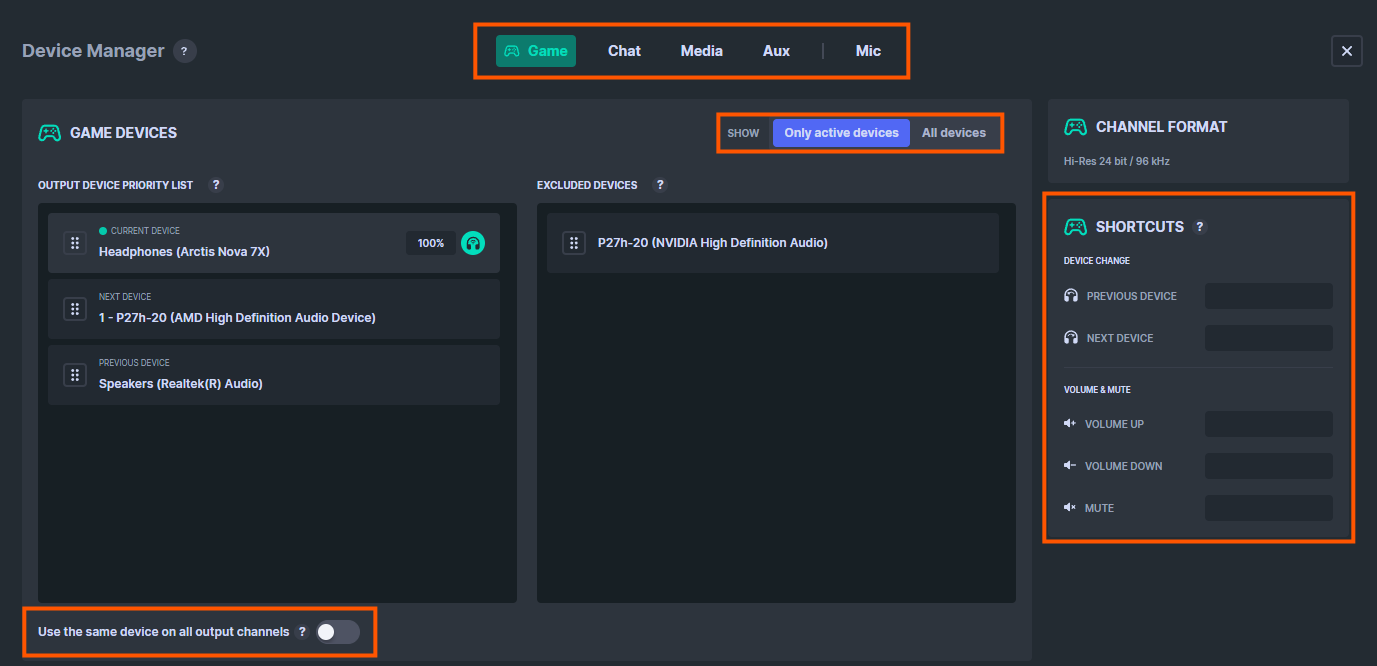
Game, Chat, Media and Aux need not have identical destinations. You might deliberately send music to speakers while keeping conversation in a headset. Check each affected output channel before using the same-device shortcut. The dedicated support article says this copies backup switching and priority across output channels; the March 2025 GG 82 explainer explicitly excludes Mic from its all-output shortcut. Check microphone routing separately.
The screenshots here document that older GG 82 interface, not a promise that every current control has the same position. One pictured panel offers an All devices view, while current configuration guidance says to connect the hardware first. Follow the controls present in your installed GG version and the current support guidance. If a control is absent, record your version rather than treating an old screenshot as proof it must exist.
A returning monitor and a startup switch are different cases
An exclusion that appears to disappear after an update has a documented explanation worth checking. SteelSeries says a Windows or driver update can make Windows identify the output as a new device; changing a USB port can also produce a new identity. Sonar can then list that identity as eligible. Confirm the actual entry and exclude it again if it is still an unwanted destination. This is a possible explanation, not a diagnosis of every switching problem.
For a headset that starts slowly when the PC boots, inspect the separate automatic backup-at-startup option described by current support. That situation differs from switching after a headset deliberately powers off. The historical screenshot also includes an Arctis Nova wireless-specific option; its presence does not establish support for other headsets. Avoid changing unrelated toggles while investigating one routing surprise.

Credit: SteelSeries. Official source
Define a local success check before changing more settings
A useful success state is specific: the intended Sonar channel plays through your chosen connected hardware, an unwanted monitor is excluded, and the selected backup policy matches your preference. If you choose to check fallback locally, do it outside a call or live broadcast, with low playback volume. Observe both the channel destination and the sound you hear; a device label alone cannot prove the audible result.
These are proposed checks, not results from a Gamer-Z hardware test. If the change behaves poorly, restore the previous mode, routing and device order from your saved reference; return any moved entry to its prior list where your version allows. Stop before driver changes or reinstalls. For unresolved behavior, provide SteelSeries support with the GG version, affected channel, actual device names and when the switch occurs.
Your next decision
Choose the fallback behavior first, then make the eligible-device list match it. Keep channel routing deliberate, and revisit the actual device identity if an exclusion returns after an update.
Sources and reporting limits
Source-based decision guide reviewed November 20, 2026 against five official SteelSeries sources. No GG installation, headset, monitor, routing transition or audio performance was tested. Manufacturer screenshots are documentary GG 82 examples from March 13, 2025; current support controls the policy explanation.
Raw support-page downloads returned HTTP 403; their actual bodies were read through the web research tool and preserved as extracts. Interface placement can change with GG releases. The overview support article uses inconsistent wording about microphone linking; the specific GG 82 explainer explicitly excludes Mic from the all-output shortcut, so microphone routing is treated separately.
- Current Auto/Manual switching and exclusions
- Managing backup playback priority
- Applying one device across output channels
- Sonar virtual devices explained
- GG 82 Device Manager: March 13, 2025 UI examples
Sources checked November 20, 2026.
Further reading
FINAL FANTASY RESONANCE / PARTY BUILDING What stays when you switch a Vision?
David Bennett · · 3 minGuide Your next handheld starts with three games.
David Bennett · · 6 minGaming audio • Research-led buying guide Five Gaming Headsets Compared
David Bennett · · 16 min