One headset can serve Xbox, PS5 and PC, but only when the exact model supports a connection path on each system. Check the headset, cable or dongle, and platform together. A broad compatibility list does not mean every included connector works everywhere, or that all software features travel with the headset.
Read the model name before the platform badge
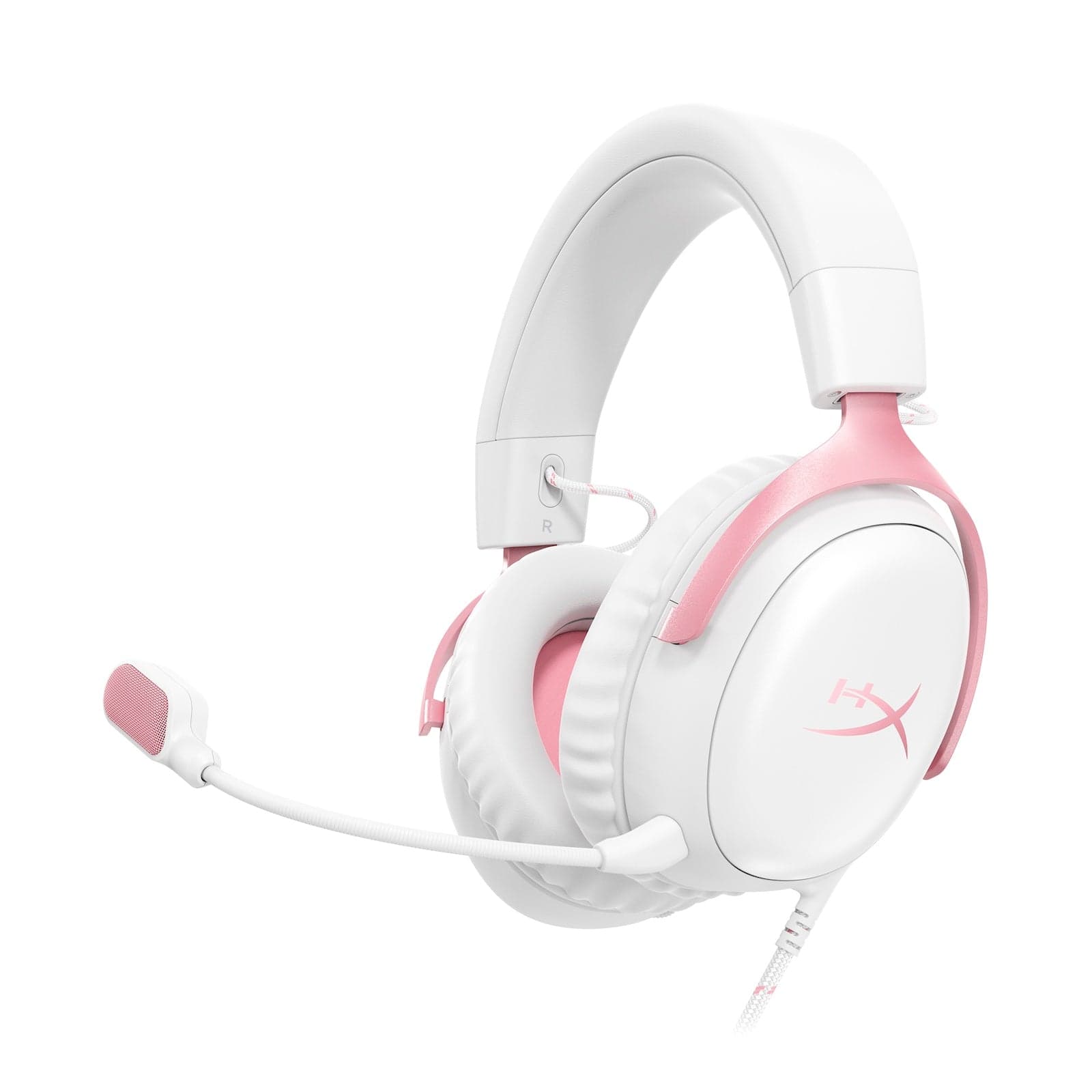
Start with the full product name, including Wired, Wireless, X or P suffixes. HyperX's Cloud III wired product page lists PC, PS5 and Xbox among its platforms and includes 3.5mm, USB-C and USB-A connections. That is a useful shortlist, but it is not a matrix promising every connection on every system.
For each system you use, write down the intended route: headset into controller, headset into computer, or headset through its own wireless receiver. Then verify that route in the exact model's support documentation. A similar-looking product in the same family is not evidence. This matters particularly when a store lets you switch between wired and wireless variants on one page.
Sources: HyperX Cloud III wired: exact product and included connections.
A 3.5mm controller connection is its own route
Microsoft documents the Xbox Stereo Headset connecting directly to the Xbox Wireless Controller's 3.5mm audio jack. This illustrates the analog controller path: the headset plugs into the controller, rather than relying on a USB audio connection to the console. Check the actual controller you own for the required socket.
For another headset, confirm both game audio and microphone support in that model's instructions. Do not assume that hearing sound proves the microphone is reaching the game. On PC, also check the computer's audio-port documentation before buying a splitter or adapter; its socket arrangement must suit the headset's plug and microphone connection.
Sources: Xbox Stereo Headset: documented controller connection; Microsoft: microphone selection and local test in Windows.
Cloud III wired: Xbox compatibility does not extend to its USB adapter
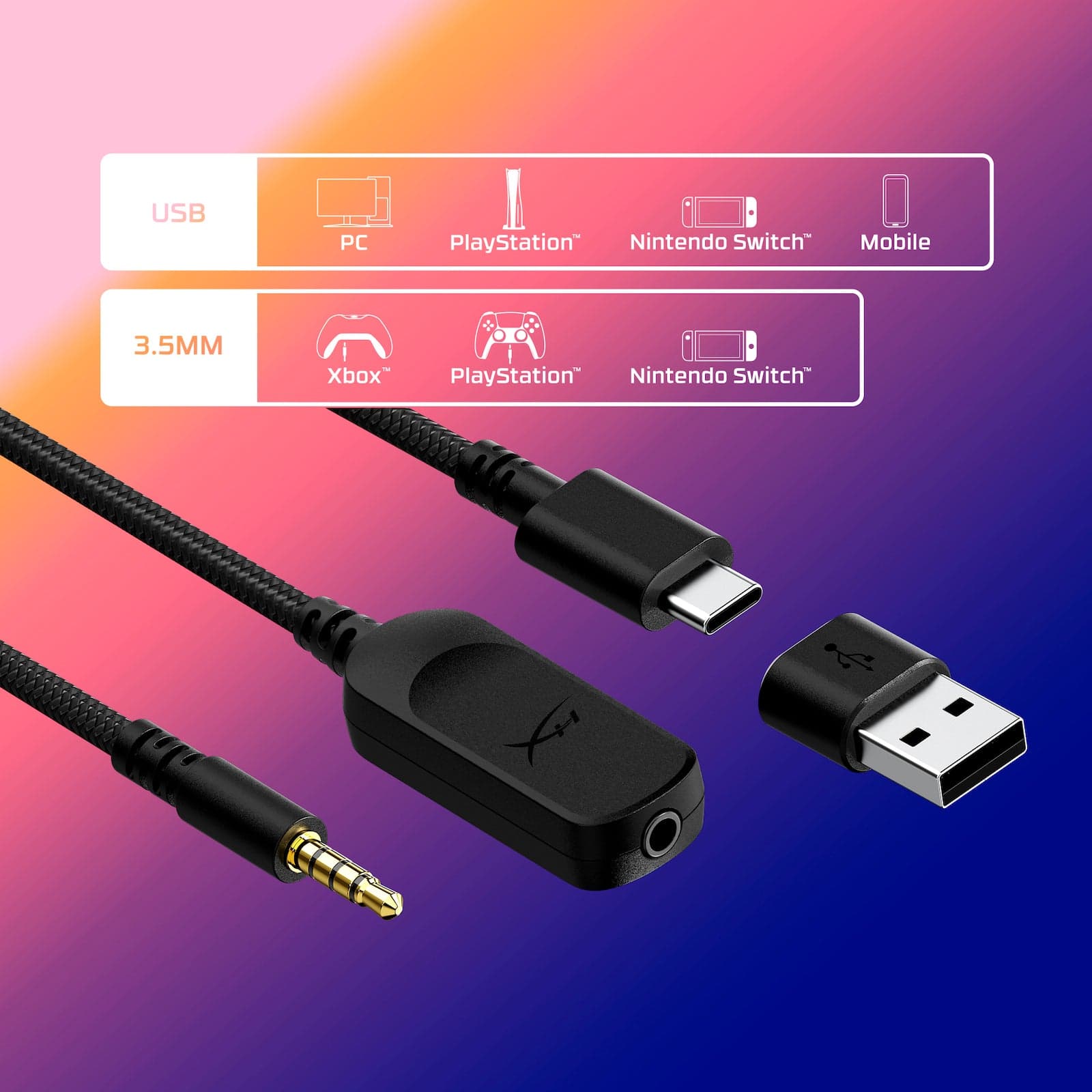
HyperX explicitly says the Cloud III's included USB adapter does not function on Xbox. Its supplied DTS license is accessed through that adapter on PC and is not usable on Xbox. The wired headset's Xbox-compatible analog route and its PC USB feature path therefore need separate entries on your checklist.
This example concerns Cloud III wired. It does not describe Cloud III Wireless or Cloud III S Wireless. Nor does it establish a rule for every USB headset: use the manufacturer's statement for the exact product instead of transferring this restriction across an entire category.
HyperX also says the wired Cloud III's NGENUITY settings are not stored on the headset and do not persist when it moves to another system. A connection that delivers audio is not a promise that your PC software configuration follows it.
Sources: HyperX: Cloud III USB adapter and DTS limits on Xbox; HyperX: Cloud III wired settings do not persist across systems; HyperX Cloud III wired: exact product and included connections.
Nova 5X: the dongle mode and model suffix both matter
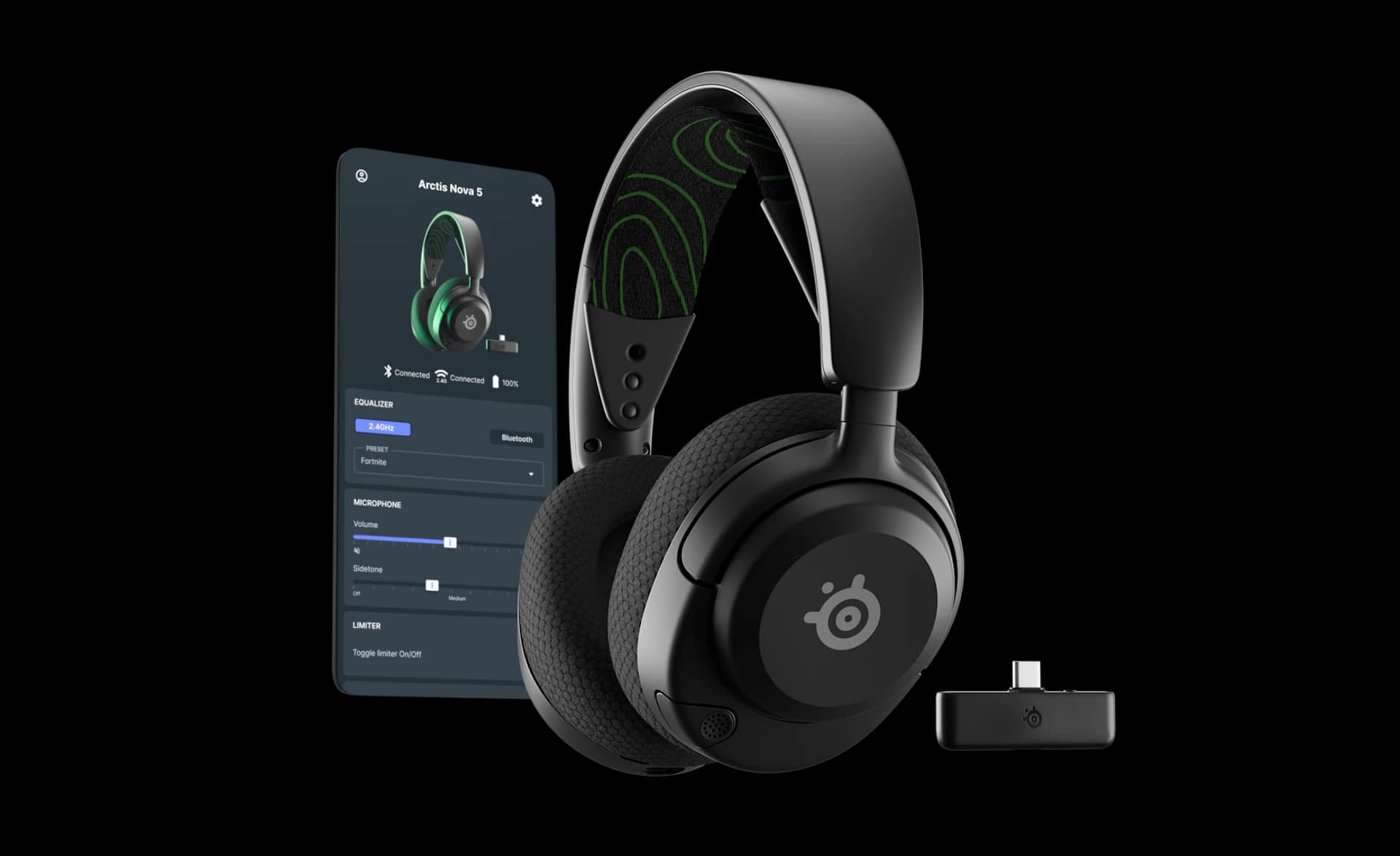
SteelSeries identifies Arctis Nova 5X as the Xbox-compatible model within the Nova 5 family. Its support instructions specify Xbox mode on the receiver for Xbox Series X|S or Xbox One, and USB mode for PC or PlayStation. The switch changes a supported connection path; it is not just a label for your preferred platform.
The same support page says Nova 5 and Nova 5P will not work with Xbox, even if a Nova 5X dongle is purchased separately. That is a concrete reason to read the suffix before ordering. A replacement receiver cannot be assumed to convert one headset model into another.
A useful pre-purchase note would therefore say Nova 5X, original compatible receiver, Xbox mode for Xbox, USB mode for PS5 and PC. Keep the manufacturer's instructions with that note. Do not reduce the decision to whether the receiver physically fits a USB port.
Sources: SteelSeries: Nova 5X receiver modes and model exclusions.
Confirm playback and microphone selection separately
PlayStation's current PS5 audio guidance separates Output Device from the microphone's Input Device. It also warns that available settings vary and that not all headsets work with the console. A connected receiver should lead to a check of the intended output and input, not an assumption that both have been selected.
On Windows, Microsoft places microphones under Settings, System, Sound, Input and provides a recording-and-playback test. That is a useful check for the owner to perform after connecting. It does not measure microphone quality or establish that a game or chat app has selected the same device.
If sound works but chat does not, check the headset's physical mute control and the selected input before shopping for replacement hardware. Keep any test recording local and delete it when it has served its purpose. This guide does not claim those checks have been performed on these products.
Sources: PlayStation: PS5 audio output and microphone settings; Microsoft: microphone selection and local test in Windows; Microsoft: microphone connection, mute and input checks.
Use a small compatibility checklist, not a ranking
Your final note needs four entries for each system: exact headset model, documented connector or receiver mode, game-audio support, and microphone support. Add any software feature you would miss, such as a PC-only setting, on a separate line.
If one entry remains unclear, send that exact combination to the manufacturer before purchasing an adapter. The useful question is whether this model, using this connection, supplies these functions on this platform. Comfort, sound quality and microphone performance require a different kind of evidence and cannot be settled by a connector diagram.
Buy for the documented route you will use. Cloud III wired shows why analog Xbox compatibility does not guarantee USB-adapter support; Nova 5X shows why a model suffix and receiver switch matter. Confirm output and input separately, then treat optional software features as their own compatibility question.
This documentation-based decision guide is not a hands-on setup test or a product ranking. It covers Xbox One/Series X|S, PS5 and Windows PC through the named examples. Bluetooth workarounds, capture devices, external mixers, audio quality, latency and comfort are outside scope.