OBS STUDIO / KEEP THE RIGHT CONFIGURATION
Does an OBS profile save your scenes? Keep both choices
Output settings and scene layouts have separate saved groups. Choose each for the production you want.
Source check: November 17, 2026 | By David Bennett
Read the decision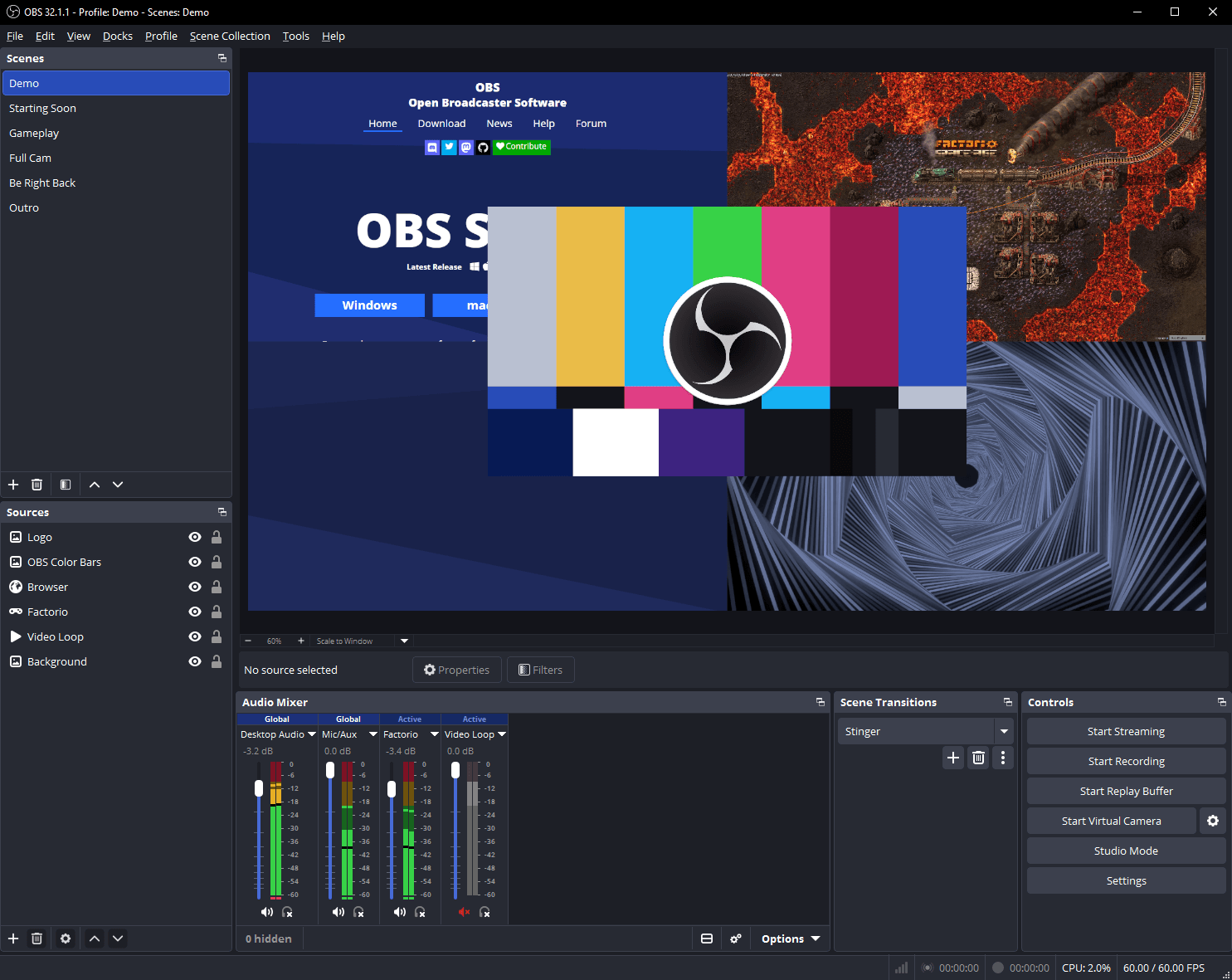
Official OBS Project interface example labelled OBS32.1.1. It illustrates the application, not a Gamer-Z recording session or a claim about today’s installed version.
Credit: OBS Project. Official source
No: OBS explicitly says Profiles do not store your scenes. Use a Profile for its documented output settings and a Scene Collection for scenes and sources, including Global Audio Sources. If you want to preserve a gaming production, identify both groups instead of treating one export as proof that the whole setup is ready.
Choose the thing you actually want to preserve
If your question is “Which scenes should appear?”, start with Scene Collections. If it is “Which output settings should this production use?”, start with Profiles. OBS documents these as separate systems that can be combined. A gaming recording and a live show can therefore share one concern while differing in the other. Naming that concern is more useful than treating the word profile as a complete backup of everything on screen.
For example, you may want the same gameplay, camera and starting-soon scenes while changing the intended output. Alternatively, you may want a clean recording layout without the overlays used in a stream. Those are different changes. Write down the layout you need and the output you need as two separate choices before replacing an existing configuration. This gives you a concrete target when checking the result.
Credit: OBS Project. Official source
Use a Profile for the documented output settings
The Profiles guide lists Stream, including the connected account, Video, including the base canvas resolution, and Output settings. Its examples include different streaming services and different output resolutions. These examples establish what the saved setting group is for; they do not say that a particular resolution or bitrate is right for your computer. Keep the configuration decision separate from performance advice.
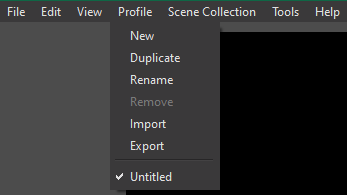
The Profile menu includes New, Duplicate, Rename, Remove, Import and Export. OBS describes New as a blank profile using defaults and Duplicate as a copy of the current one. That distinction matters if you want a variation of a working setup rather than a blank starting point. Check which profile is active, give the intended version a meaningful name, and avoid removing the working version merely to make the menu shorter.
Use a Scene Collection for the layout and its audio sources
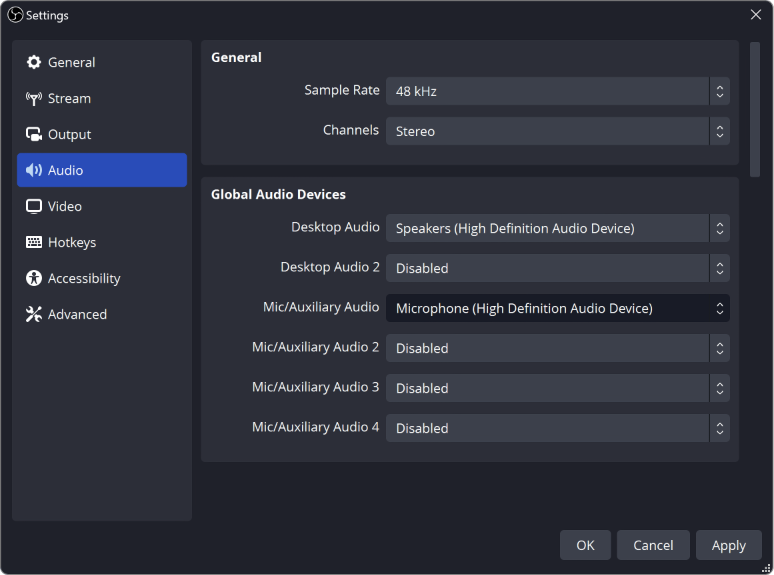
Scene Collections retain the scenes and sources added to them. OBS gives examples such as separate podcast and gaming collections, or a recording collection without streaming overlays. Its documentation also explicitly places Global Audio Sources from Settings, Audio in the collection. A collection choice is therefore not just a different list of visual scene names; it can affect the audio sources you expect to use.
Imagine preparing a clean gameplay recording after an evening stream. Check the intended collection before deciding that an overlay or microphone has vanished. Then inspect the sources within the relevant scene. A profile switch alone is not the documented way to select a different scene layout. The official menu images illustrate the two separate controls; their appearance is documentation context, not a capture of your installed version.
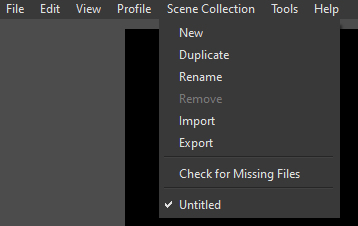
Credit: OBS Project. Official source
Treat the two exports as separate configuration records
OBS documents Profile import and export separately from Scene Collection import. The Scene Collections guide expressly says that output settings belong in Profiles. If your goal involves both the visual production and its output configuration, identify both saved groups. Do not assume that clicking one Export command proves you have preserved the other. Keep a note of which named profile and collection belong together.
A useful naming scheme might pair “Game recording output” with “Clean gameplay scenes”, while retaining a separate pair for a live show. The names are your own organizational choice, not a setting we recommend importing. Because profiles can include a connected account, treat exported configuration as private until you have reviewed what you intend to share. Keep the existing working configuration available while checking any imported counterpart.
Check the sources behind the scene names
The Sources Guide describes scenes as the place where games, webcams, devices and other media are arranged for the output. It distinguishes source types instead of presenting every visible element as interchangeable. A scene with the expected name still needs the expected sources. Check the actual game, camera, image or media element rather than deciding that a collection name alone proves the production is ready.
Media Sources have their own properties, including a local-file selection and playback behavior. That is a reason to check the files and source properties the production depends on. A settings export is not, by itself, evidence that every external media file or third-party dependency has been packaged and verified. This article makes no universal migration promise across computers, operating systems or plugin arrangements; those need their own documented requirements.
Credit: OBS Project. Official source
Verify a private result before going live
OBS’s Quick Start guide recommends a short test recording or stream to check video and audio. For this configuration decision, begin with a private local recording. Confirm the intended profile and collection, inspect the scene preview and audio meters, and review the resulting file for the picture and sound you wanted. Starting a public broadcast is not necessary to establish those basic observations.
If the result is wrong, separate an output mismatch from a source or collection mismatch before changing more settings. Return to the previously working profile and collection when available, and keep the files and names you used for the comparison. A completed import is not the same as a verified production. Stop at a result you can actually inspect rather than assuming that every source, device or service has been carried over correctly.
Your next decision
Pair the output profile with the scene collection you actually intend to use, preserve the working versions, and inspect a private recording before relying on the configuration.
Sources and reporting limits
Source-based configuration decision guide checked November 17, 2026 against current official OBS documentation. No profile change, import/export, device configuration, recording or broadcast was executed for this article. Official project screenshots illustrate their original documented interface.
No universal backup completeness, media bundling, plugin migration, hardware compatibility, performance or credential-redaction guarantee. Documentation screenshots may show different versions from the current installed application.
- OBS: Profiles and their saved settings
- OBS: Scene Collections and global audio sources
- OBS: Sources Guide
- OBS: Quick Start and private recording checks
- OBS: official interface imagery
- OBS: Media Sources and local media properties
Sources checked November 17, 2026.
Further reading
FINAL FANTASY RESONANCE / PARTY BUILDING What stays when you switch a Vision?
David Bennett · · 3 minGuide Your next handheld starts with three games.
David Bennett · · 6 minGaming audio • Research-led buying guide Five Gaming Headsets Compared
David Bennett · · 16 min