CAPTURE / FOLLOW THE SIGNAL
PS5 capture black screen? Check the 4K X signal path
Your TV picture and your recording preview travel through different connections.
Source check: November 16, 2026 | By David Bennett
Read the decision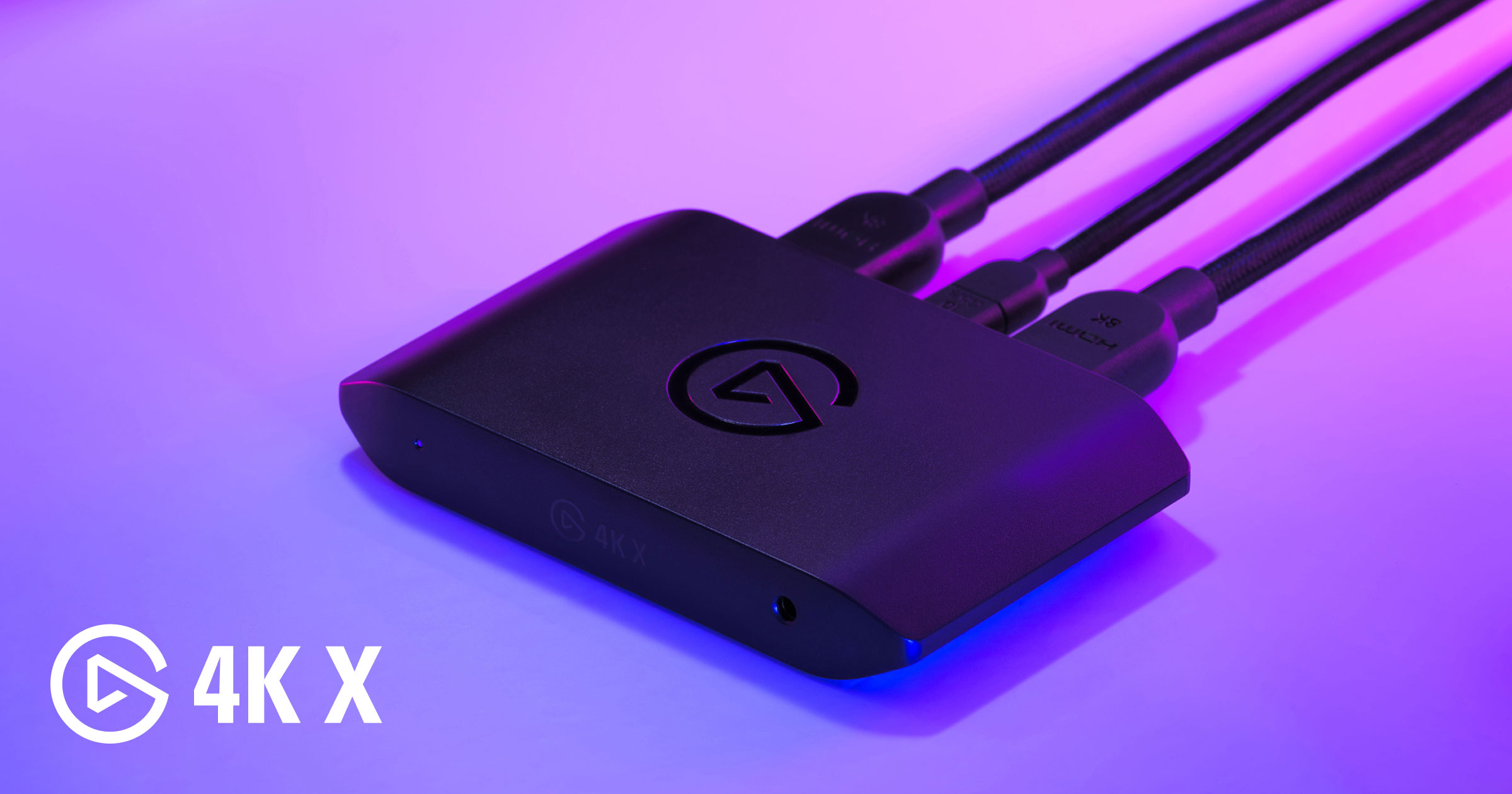
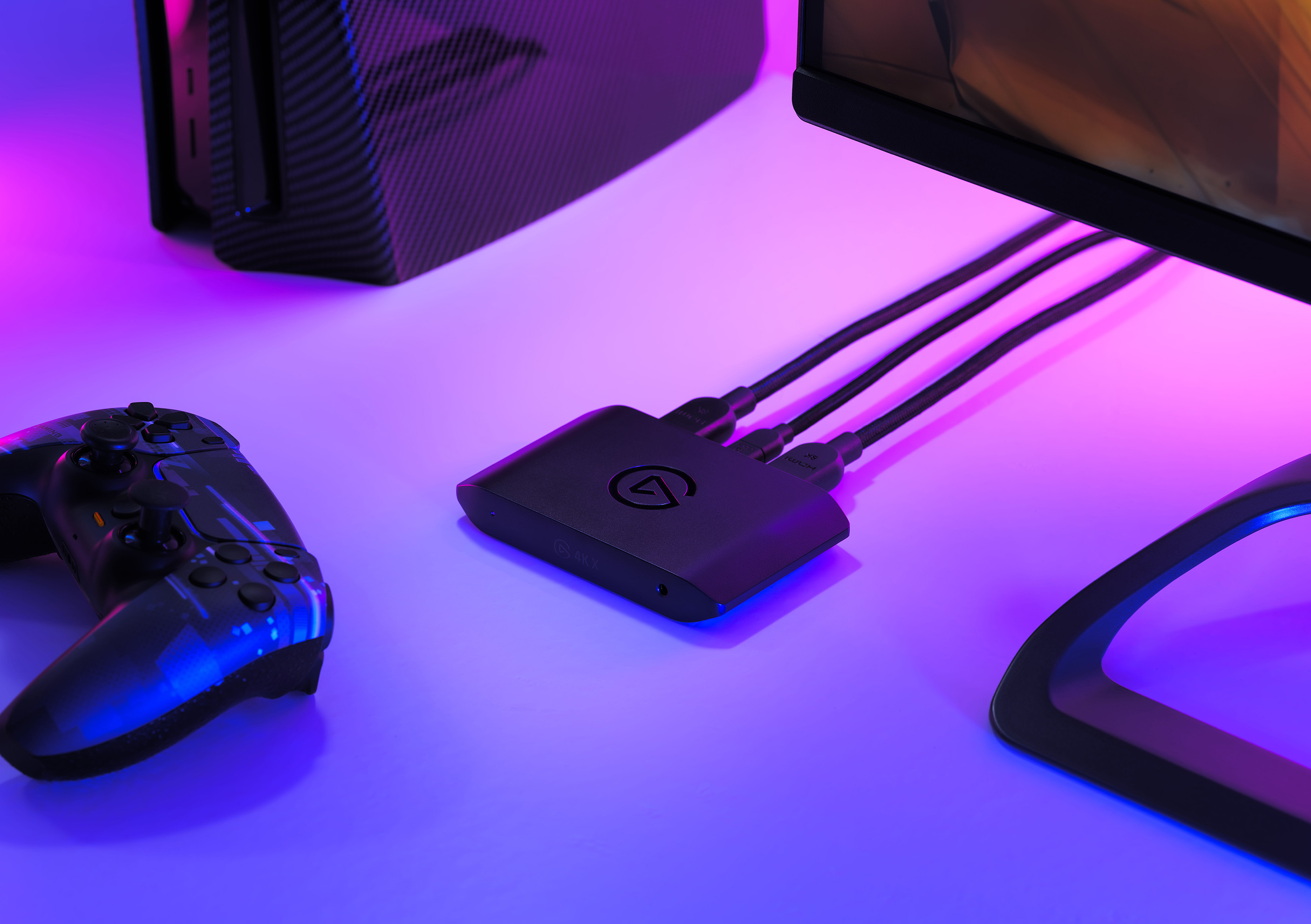
Official 4K X promotional photograph; no Gamer-Z hardware test or capture-performance claim.
Credit: Elgato. Official source
For PS5 gameplay capture with Elgato 4K X, check HDCP first, then separate the console-to-display HDMI path from the USB capture path to the computer. Elgato documents HDCP as a black-screen cause, but that does not diagnose every missing picture. The exact USB connection, computer requirements and recording format still matter. This decision guide follows current manufacturer documentation; it is not an executed repair walkthrough or proof that a particular cable, PC or console configuration works.
Start with the screen that is actually black
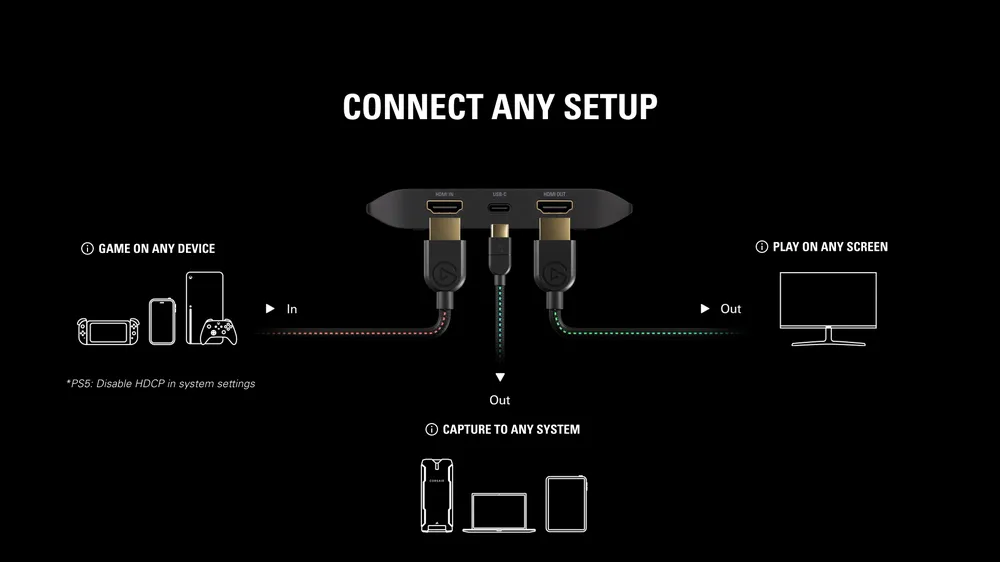
A television picture and a capture preview answer different questions. Elgato's quick-start diagram gives the console an HDMI input, the display an HDMI output and the computer a USB connection. A working display therefore does not, by itself, establish that the recording application has a usable capture source. Describe the missing result precisely before buying a cable or changing the console's video settings.
Note whether the PS5 displays normally when connected directly to the same television, whether it displays through the card, and whether the computer application offers a picture. These are proposed observations, not tests performed for this article. Preserve your existing settings while gathering them. The distinction is useful even if you cannot yet name the fault: it gives support a clearer description than simply saying that the capture card does not work.
Credit: Elgato. Official source
Check the PS5 HDCP prerequisite before building the chain
Elgato says protected HDMI signals cannot be captured and explains that PS5 enables HDCP by default. Its PS5 instructions begin with the console connected directly to the television, without the capture card. The documented menu is Settings, then System, then HDMI, where Enable HDCP is turned off before reconnecting the capture hardware. This prerequisite applies to the intended gameplay capture; it is not evidence that every black screen has the same cause.
Keep protected video separate from that gameplay task. Elgato's HDCP explanation says capture devices cannot record protected streaming-service content. Do not treat a capture problem in a movie application as a reason to seek an HDCP bypass. If you need to return to your previous viewing arrangement, retain the direct console-to-display route and the original setting as your reference. This guide does not claim to have tested protected-media behavior or a particular PS5 system-software revision.
Trace HDMI IN, HDMI OUT and USB as three different legs
The model-specific setup uses two HDMI cables: the PS5 goes to 4K X HDMI IN, and HDMI OUT goes to the television or monitor. USB connects the card to the computer. Elgato describes the output to the display separately from the USB video feed, so do not use the port names interchangeably when checking your connections. Read the labels on the actual hardware rather than guessing from which side of the desk a cable approaches.
The official photograph below illustrates a cabled card, but it cannot establish cable specifications or prove your own signal path. Use the manufacturer's connection diagram alongside the physical labels. The 3.5 mm socket is another potential misunderstanding: Elgato identifies it as analog line input, not a microphone port. Audio configuration and party-chat capture deserve their own checks; a connected audio cable is not evidence that the video path is complete.
Credit: Elgato. Official source
Check computer requirements beyond the shape of USB-C
Elgato lists USB 3.2 Gen 2 for 4K X, with reduced capture resolution when using USB 3.2 Gen 1. Its system-requirements page also says a Type-A connection can work when both cable and port meet the USB 3.2 specification. Connector shape alone therefore does not settle the capture-bandwidth question. Identify the computer's actual port specification and the cable, rather than treating every USB-C socket as equivalent.
The requirements include operating system, processor, graphics and memory; the page also warns that recording software can have different requirements from 4K Capture Utility. Compare the current requirements with the actual computer and chosen application before assuming a supported console guarantees a supported recording setup. We have not checked a particular laptop, USB adapter or hub. This guide does not recommend installing drivers, changing firmware or buying a replacement computer on the basis of a black preview alone.
Choose the recording target separately from passthrough
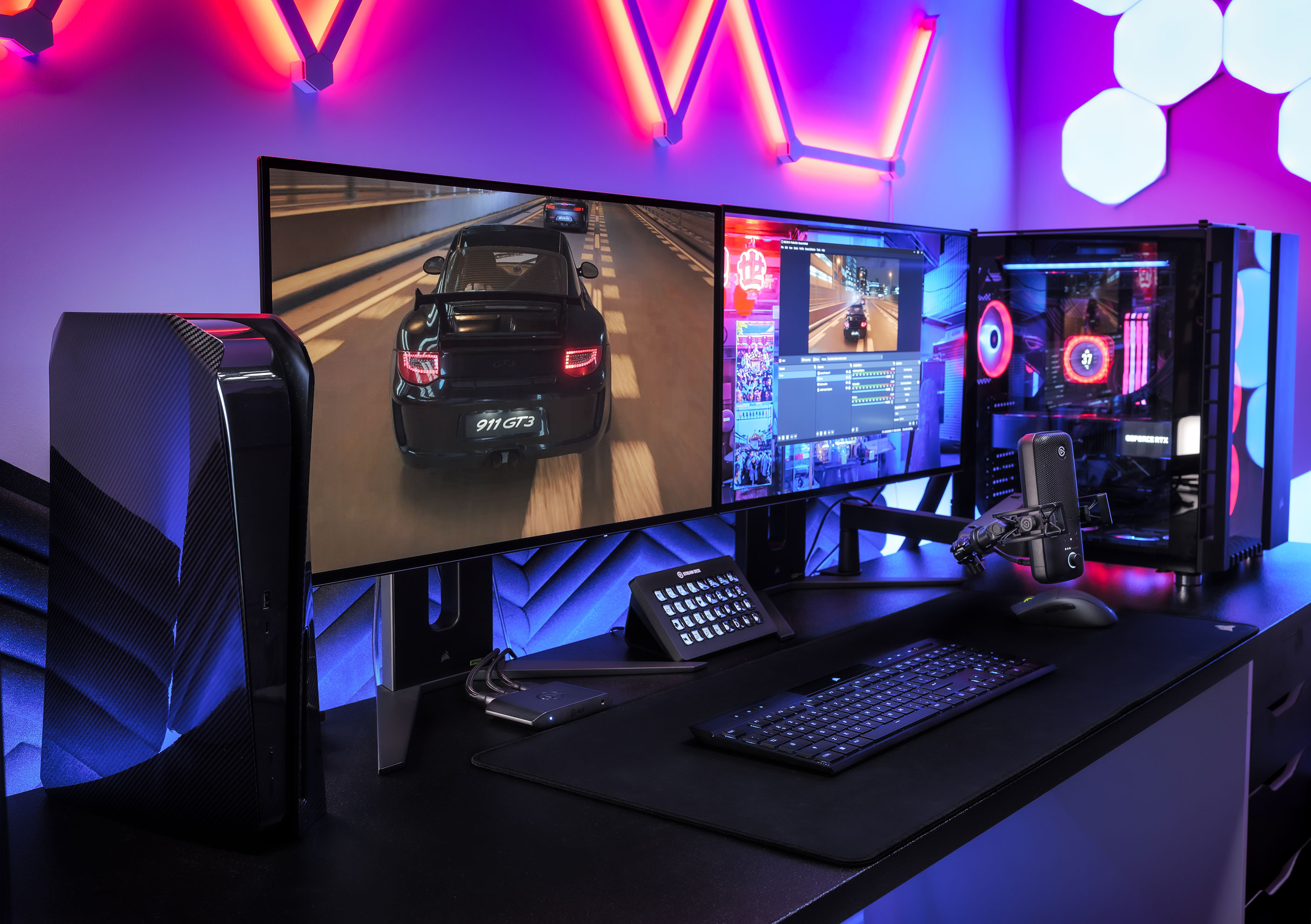
Elgato publishes different passthrough and capture limits. Its technical specifications also distinguish SDR and HDR capture, and state that HDR capture is currently Windows-only and depends on the input signal. A high-refresh picture on the television is not a promise that an identical format can be recorded on every computer. Check the current supported-format table for the intended resolution, frame rate, dynamic range and platform together.
Decide what you need to produce before chasing the largest number on a product page. A capture target is a recording requirement; it does not have to be described as the television's full capability. Write down the intended output and compare it with the model's table and software requirements. No resolution, HDR mode, refresh rate, encoding load or image-quality result was tested for this article, and manufacturer maximums are not our performance measurements.
Credit: Elgato. Official source
Verify a private result before changing more settings
Elgato's current quick start points to Elgato Studio for recording and compatible streaming applications for broadcasting. This article stops at the local recording decision: there is no need to start a public stream merely to investigate whether a capture picture exists. Use the chosen application's current device instructions, keeping the source selection distinct from the HDMI passthrough picture.
A useful proposed success check is a short private recording of your own gameplay that can be played back with the intended picture. Treat audio as a separate verification item. If the prerequisite chain is established but the result is still missing, preserve the exact console, card, computer, cable specifications, application and observed screen states for Elgato support. Restore the prior direct-display arrangement and settings when stopping. Avoid a speculative reset or firmware flash: neither was executed or established as necessary here.
Your next decision
Establish the HDCP prerequisite, trace the three connections and match the recording target to the documented computer and format requirements. If the picture remains missing, preserve those observations for support rather than stacking unrelated changes.
Sources and reporting limits
Source-based setup decision guide researched November 16, 2026. Official Elgato model-specific setup, quick start, HDCP, technical specifications and system requirements were read. Product and guide imagery is manufacturer material. No console, capture device, application or cable was configured or tested.
No measured capture latency, compatibility certification, guaranteed repair, benchmark, price or buying recommendation. Suggested observation, verification and restoration steps were not executed. Software naming and model-specific format support can change.
- Elgato 4K X PS5 model-specific setup
- Elgato 4K X current quick-start guide
- Elgato 4K X technical specifications
- Elgato HDCP explanation and PS5 prerequisite
- Elgato 4K X computer system requirements
- Elgato 4K X official product and media context
Sources checked November 16, 2026.
Further reading
FINAL FANTASY RESONANCE / PARTY BUILDING What stays when you switch a Vision?
David Bennett · · 3 minGuide Your next handheld starts with three games.
David Bennett · · 6 minGaming audio • Research-led buying guide Five Gaming Headsets Compared
David Bennett · · 16 min