PS5 / WHAT YOUR CLIP KEEPS
Your PS5 microphone and party voices are separate recording choices
Check the recording choices, each player's sharing permission and the saved clip before choosing what to share.
Source check: November 10, 2026 | By David Bennett
Read the decision
Official artwork from Sony's guide to sharing. This article interprets the published controls; it does not present a recording test.
Credit: Sony Interactive Entertainment / PlayStation. Official source
Your PS5's video clip settings let you choose microphone audio and voice-chat audio separately. Each friend can also decide whether their voice may be used in another player's clips. Hearing everyone while you play leaves both choices to check. Start with the intended recording, ask the group about voice sharing, then listen to the saved file.
Choose which voices the saved clip should include
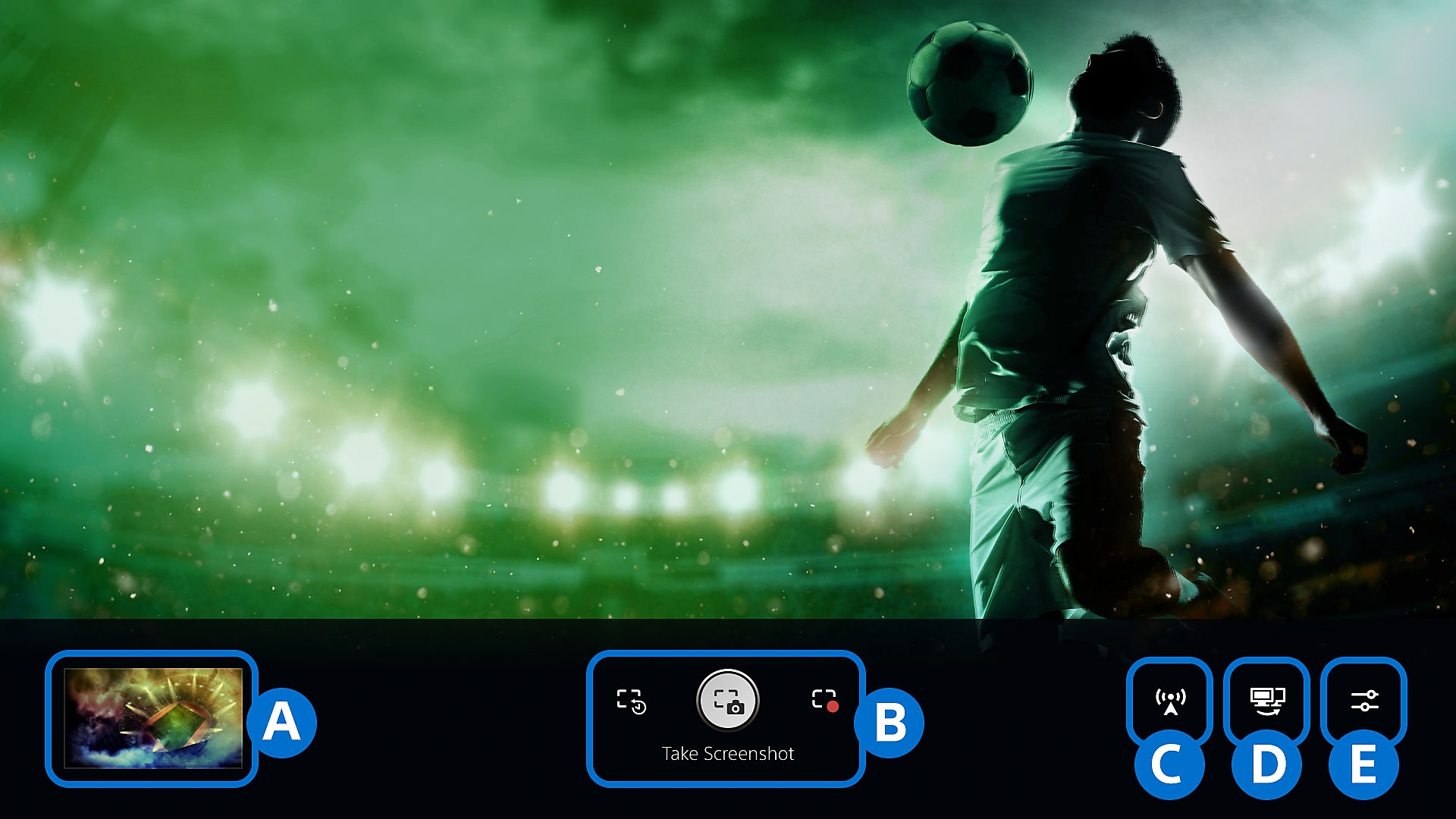
Sony gives microphone audio and voice-chat audio separate choices for video clips. Its capture support places those choices under Video Clip Format in Captures and Broadcasts. Capture Options is also available from the Create menu. Decide whether the clip should include your commentary, the conversation, both, or the game without those added voices.
For example, you may want your own reaction to a close finish while keeping the group conversation out of the shared recording. Hearing that conversation during play does not establish what the recording contains. Use Sony's documented capture choices for the recording decision, then inspect the saved file before relying on it.
Credit: Sony Interactive Entertainment / PlayStation Support. Official source
Each friend controls whether their voice can be shared
A party member has a decision on their side as well. Sony describes Voice Chat Settings as the place to adjust microphone level or allow your voice to be used in other players' broadcasts and video clips. Your choice to include voice-chat audio and another player's choice to share their voice address different parts of the recording.
Ask the people in the chat before including their voices, as Sony's capture guidance requests. If one person wants to stay out of the clip, agree on that before recording something intended for others. A friend checking their own sharing choice is more useful than treating their absence from a saved clip as proof that your headset needs replacing.
Identify the conversation you are actually hearing
Sony distinguishes party voice chat, started in Game Base, from game voice chat inside a game. The voice chat card identifies the current type and lets you switch between ongoing chats. Its Audio Balance option adjusts party voice chat against other audio on your console. These descriptions help you identify the listening context before discussing a recording.
Keep a useful description of the situation. Name the game, whether the conversation was a PlayStation party, and whether the missing sound was your microphone or another person. Game audio, your commentary and other players' voices are different things to compare with the saved clip. A single report that the audio is wrong leaves those questions open.
Credit: Sony Interactive Entertainment / PlayStation Support. Official source
Give a live broadcast its own audio check
A video clip and a live broadcast have separate documented settings. Sony's Broadcast guidance places microphone and party-audio choices under Settings, Captures and Broadcasts, Broadcasts, Audio. It also describes Broadcast Options when starting a stream. Check the settings for the output you intend to create, especially if you move between saved highlights and live sessions.
Tell party members ahead of time when their voices will be part of a broadcast. Sony explicitly asks for that notice and points out that players can configure their settings and device for voice sharing. If your plan is a saved clip, return to the capture-specific guidance. A successful live conversation alone leaves the saved recording decision unresolved.
Listen to the saved file before choosing a recipient
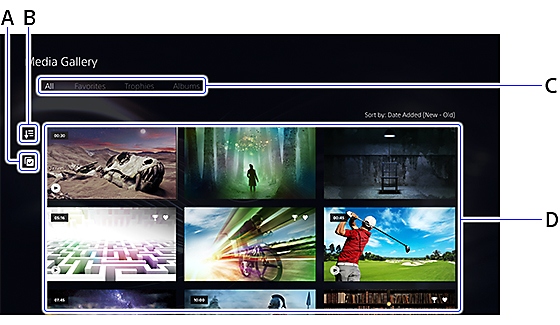
Sony documents two places to find captures, the Recently created card and Media Gallery. The Gallery can show a selected capture in full screen. Use the actual saved clip for the final check. Listen for the game sound and each voice you intended to include, with particular attention to the part of the clip you plan to share.
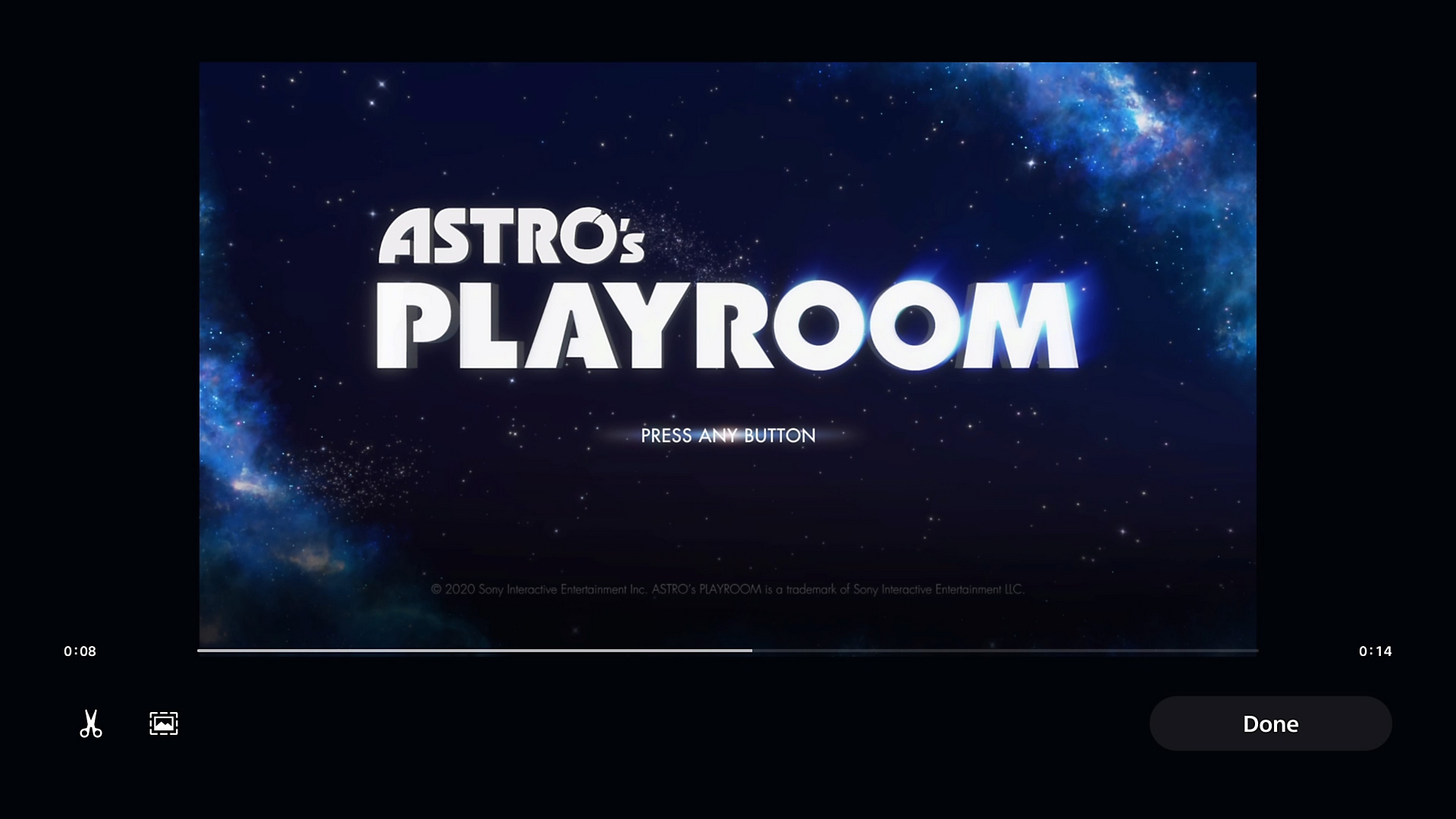
If the file differs from your intention, keep it local while you establish which capture choice and chat context applied. Sony's Media Gallery illustration shows the documented viewing environment. Its menus do not depict a friend's voice-sharing permission. That distinction matters when using a support image to understand where to review the result.
Credit: Sony Interactive Entertainment / PlayStation Support. Official source
Trim and preview the recording you have
Sony's basic video editor can remove time from the start and end of a clip and set its cover image. Its support page also documents Preview before saving. Use those options to choose the portion you want another person to see and hear. Base that choice on the recorded file you just reviewed.
When the result is ready, Sony's sharing process asks you to choose a destination or recipient. Check that final audience alongside the content, particularly when the recording contains someone else's conversation. A useful highlight is a clip whose recorded voices, selected portion and intended audience all match what the people involved agreed to share.
Your next decision
Choose the voices you intend to include, respect each player's sharing choice, and review the actual saved clip. Make the final decision with the recording and its audience in mind.
Sources and reporting limits
This is a source-based setup explainer checked against Sony documentation on November 10, 2026. Gamer-Z has not recorded a clip, changed a party member's settings, tested hardware or run a broadcast for this article.
The guide covers Sony's documented PS5 capture and party-chat choices. Game-specific voice capture, Discord audio, capture cards, Remote Play microphone routing, audio recovery and measured hardware behaviour are excluded. Sony's support images illustrate the named menus and their original context.
- Sony: capture gameplay and screenshots on PS5
- Sony: use party voice chat on PS5
- Sony: view PS5 screenshots and video clips
- Sony: edit and share PS5 captures
- Sony: configure PS5 Broadcast audio
- Sony: the PlayStation guide to sharing
Sources checked November 10, 2026.
Further reading
FINAL FANTASY RESONANCE / PARTY BUILDING What stays when you switch a Vision?
David Bennett · · 3 minGuide Your next handheld starts with three games.
David Bennett · · 6 minGaming audio • Research-led buying guide Five Gaming Headsets Compared
David Bennett · · 16 min