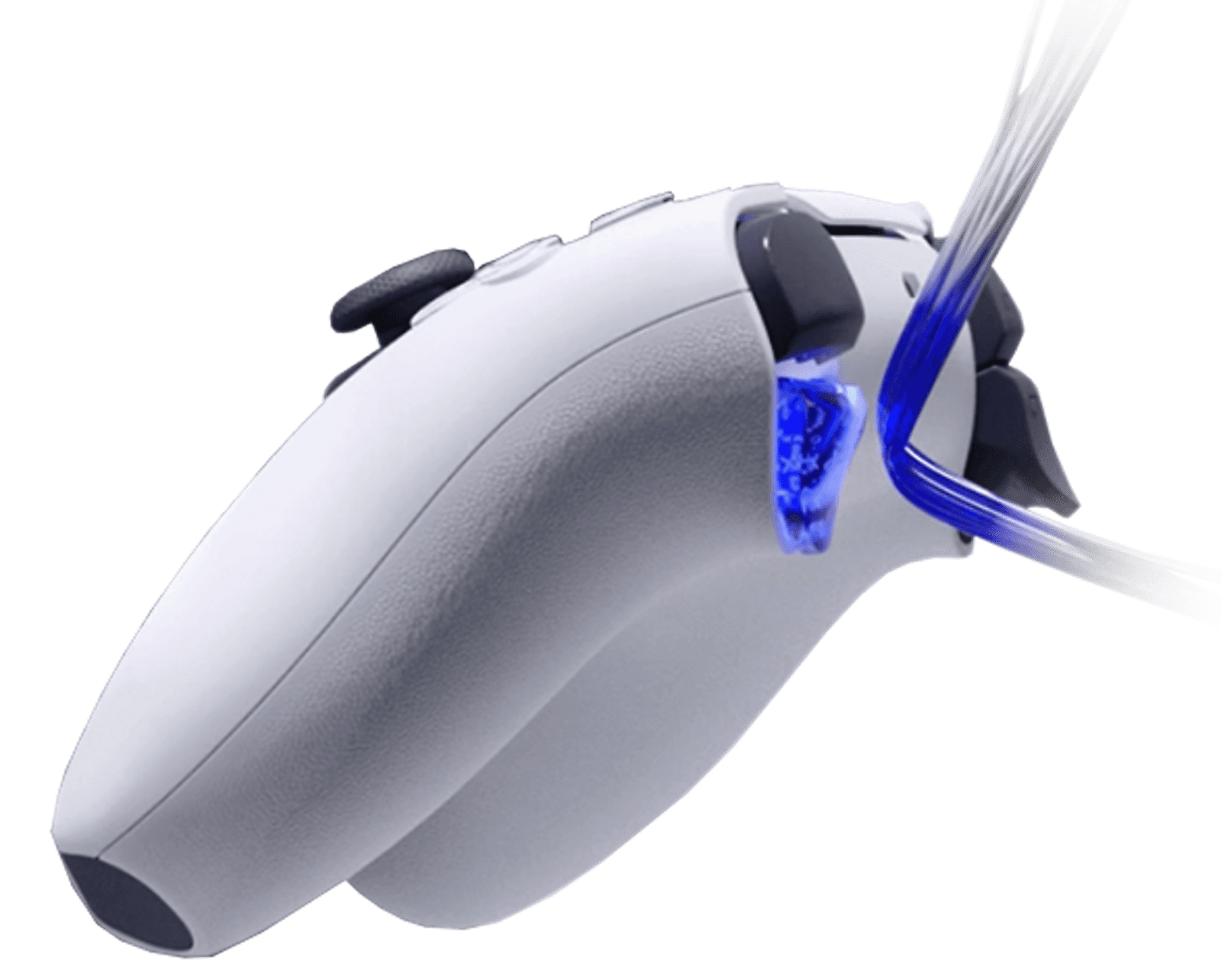
Sony's adaptive-trigger illustration, not a PC test result. Image: Sony Interactive Entertainment.
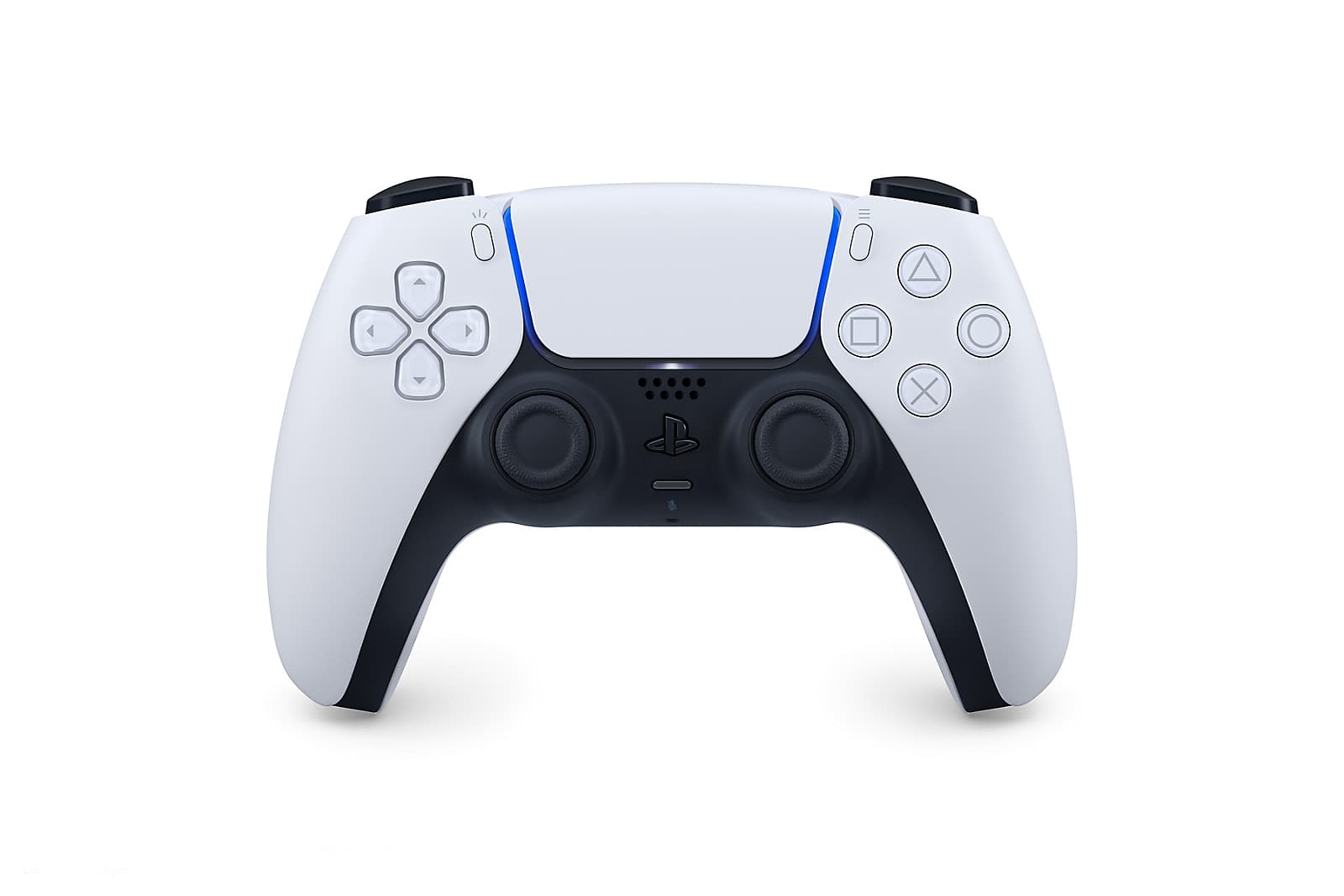
Use USB as your starting point when you want the full set of DualSense features in a supported PC game. Bluetooth is a supported connection for compatible Windows games, but pairing alone does not confirm haptics, adaptive triggers or controller audio. The decisive check is the game's own support guidance for your connection method.
Start with the feature you want
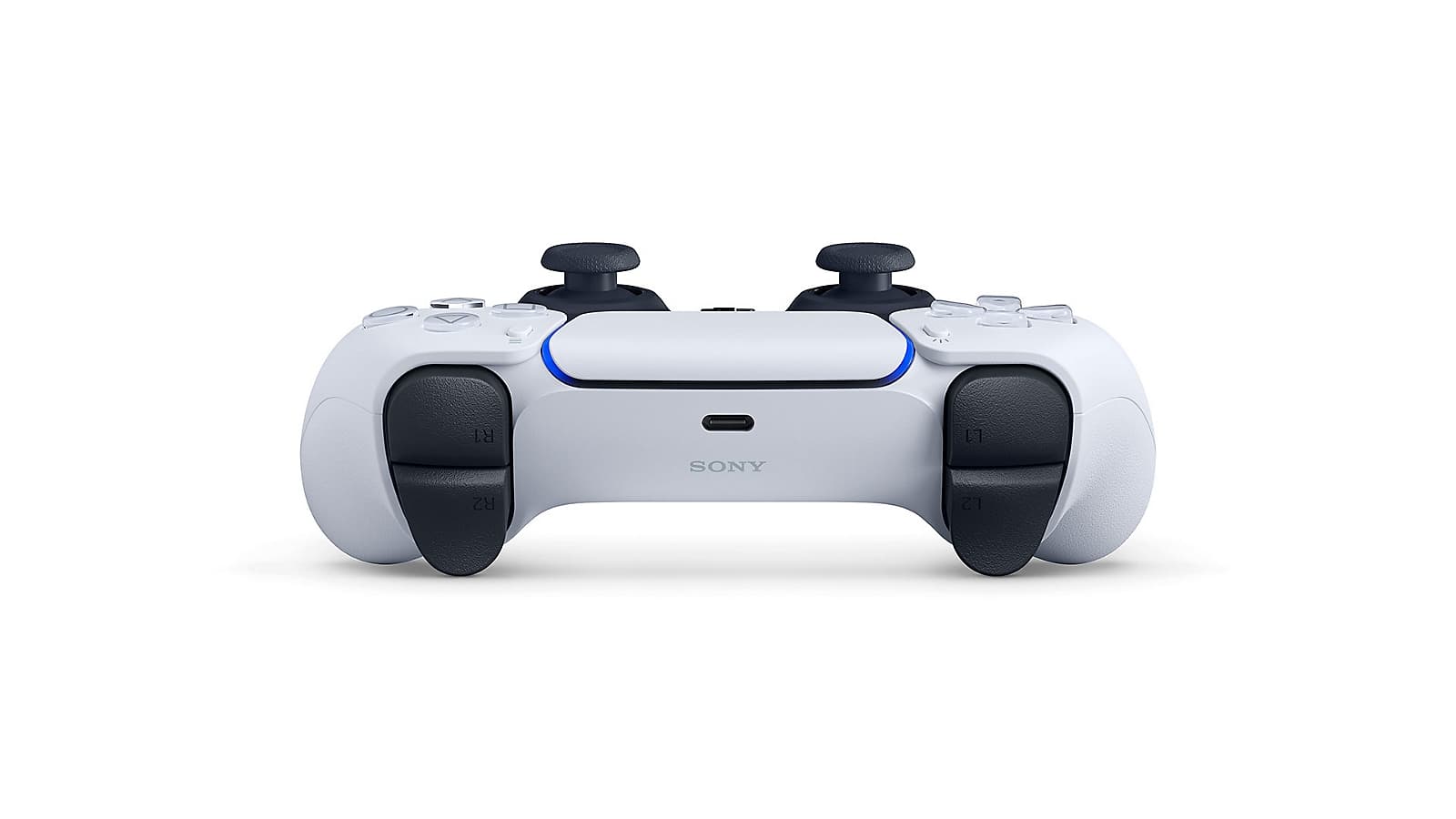
Sony lists Windows 10 64-bit and Windows 11 among supported systems for USB and Bluetooth connections. It separately says adaptive triggers depend on game support, while the controller's headset jack needs a wired connection on PC. Those are different requirements: a game accepting button presses is only the first check.
If your aim is simply to play from the sofa, check whether that game supports DualSense over Bluetooth. If you want its trigger effects or detailed haptic feedback, look for those features by name. If you intend to plug a headset into the controller, plan around the wired audio requirement rather than assuming the Bluetooth pairing carries that sound.
Sources: PlayStation: DualSense PC connections and feature limits.
Why USB is the documented starting point
Sony's current support pages are not worded identically. Its PC pairing article says haptic feedback requires USB on PC; its controller manual says a Windows PC may need USB. Both make support dependent on the game. That wording does not justify a universal claim about every game, adapter or third-party tool.
There is a firmer instruction for a defined group of games: Nixxes tells players of its PlayStation PC ports to use a wired USB connection for the full DualSense feature set. Start there if that is the developer's instruction for your game. A cable does not add effects that the game never implemented.
Sources: PlayStation: DualSense PC connections and feature limits; PlayStation controller manual: device and feature support; Nixxes: supported PC controllers and Steam Input.
Read Steam's badge as a control promise
Valve explains that Full Controller Support concerns playing through the game and its usual menus with a controller. It explicitly does not promise use of every controller feature. The same explanation distinguishes USB-only support from broader PlayStation-controller support, because games can use different input software.
Before buying a game for its DualSense features, inspect the specific controller information on its store page, then read the developer's feature notes. A generic controller badge is not enough evidence for a haptics purchase. Keep the two questions separate: can this controller operate the game, and does this connection deliver the effects you want?
Treat Steam Input as a game-specific choice
Nixxes supports Steam Input for controller reconfiguration, and suggests disabling it as one troubleshooting option when its games have controller issues. The studio also says to change that setting before starting the game. This is scoped advice for its titles, not a rule to switch Steam Input off across your library.
For a useful support report, record the game and version, whether the controller uses USB or Bluetooth, and whether Steam Input is enabled. Describe the missing function precisely: no input, incorrect prompts, no trigger resistance or no haptics. That gives the developer a narrower question than saying the controller does not work. Change one variable at a time and retain the original setting so you can return to it.
Separate firmware, cables and game support
PlayStation Accessories can update the standard DualSense firmware on Windows. Its customization features are for DualSense Edge, so the two product names should not be treated interchangeably. Sony lists USB and Bluetooth connections for the app, while warning that not every Bluetooth adapter is supported.
The app can show the controller firmware and connection method. Sony instructs users not to turn off the PC or disconnect the controller during a firmware update. Updating is maintenance, not proof that a particular game supports an effect.
For a wired connection, choose a USB cable that carries data and has the right connector at each end. Sony's controller support guidance distinguishes data-capable cables from charge-only cables. The fact that a controller receives power is not a useful substitute for checking the cable's stated data capability.
Sources: PlayStation Accessories: firmware and app requirements; PlayStation: controller and USB cable support.
Make the connection decision before buying extras
Write down one target game and one wanted feature. Check the game's current instructions, then decide whether USB fits your seating arrangement. If it does, confirm cable reach and the PC's available port. If it does not, establish the documented wireless feature support before paying for an adapter or another application.
An unresolved feature claim is a reason to ask the developer a precise question. It is not evidence that your controller is faulty, or that another controller will solve it. Keep ordinary button control, special effects and headset audio as separate acceptance checks.
Choose the connection for the feature, then verify the game. USB is the documented route to the full feature set in Nixxes' supported PC titles; Bluetooth needs a game-specific check. Neither a successful pairing nor a Steam controller badge replaces that check.
This is a documentation-based explainer, not a hands-on compatibility or latency test. It covers the standard DualSense on Windows PC. DualSense Edge customization, macOS, mobile devices, Remote Play and third-party emulation or wireless-haptics tools are outside its scope.