PS5 / THE DISPLAY CONNECTION
PS5 at 1440p: VRR and ALLM are separate display choices
Choose the output you want, then check what the connected screen and game actually support.
Source check: November 11, 2026 | By David Bennett
Read the decision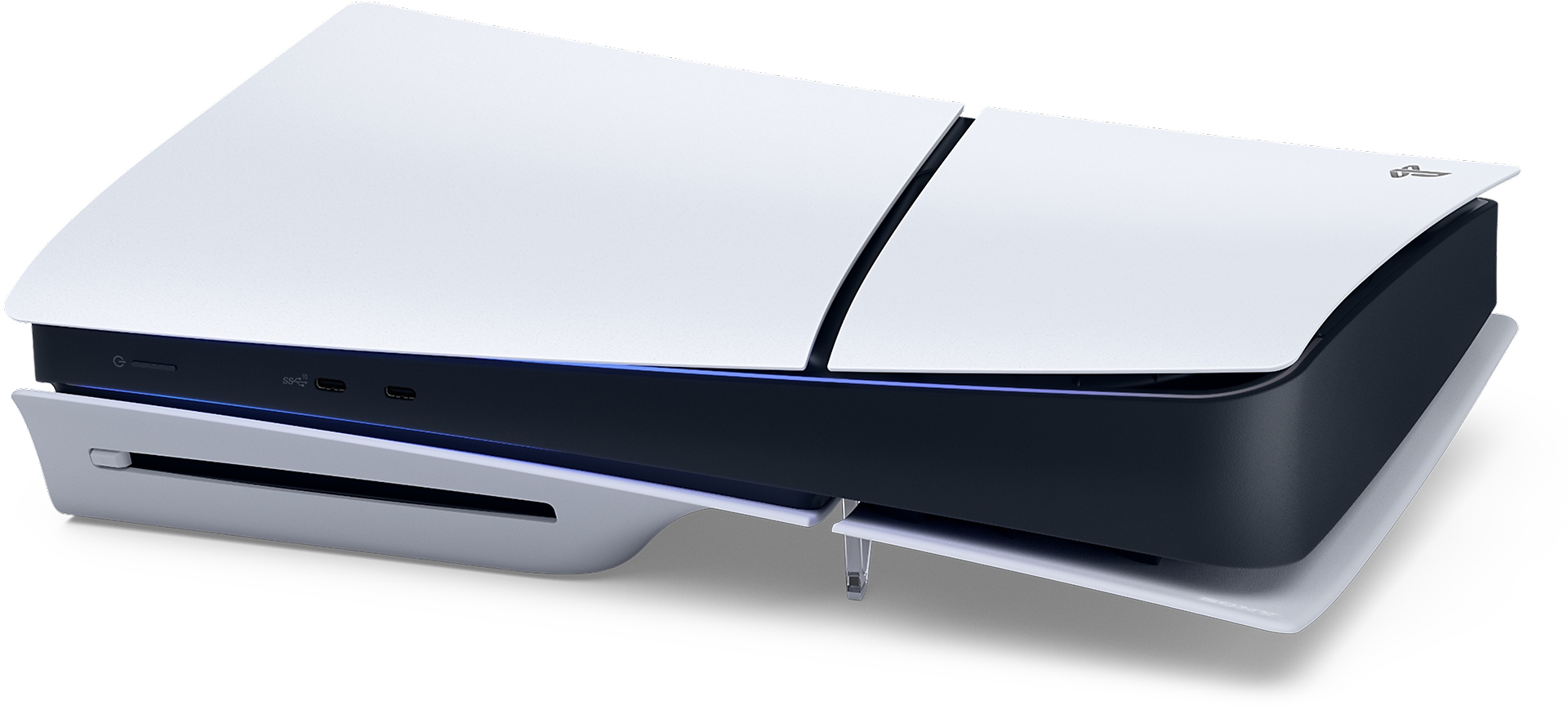
Official Sony PS5 console photograph. It identifies the platform, not a tested display combination.
Credit: Sony Interactive Entertainment / PlayStation. Official source
PS5 supports 1440p output with VRR on compatible equipment; the original 2022 restriction is out of date. 1440p resolution, 120 Hz output and ALLM remain separate choices. ALLM can still operate during VRR even when its own setting is Off. Check the connected display and the game before treating any one feature label as a complete compatibility answer.
Read the connection as separate capabilities
A 1440p label answers a resolution question. VRR, 120 Hz output and automatic low-latency switching ask additional questions about the connected display and the game. Sony places their controls together under Screen and Video, but having one available does not establish that every other feature is active.
Before choosing a setting or comparing monitors, name the result you want: a 1440p picture, variable refresh, a supported high-refresh game mode, or automatic switching into a low-latency display mode. Keep those goals separate when reading a specification sheet. This guide has not connected a monitor or measured latency; it explains how Sony distinguishes the decisions.
Credit: Sony Interactive Entertainment / PlayStation. Official source
Treat the old 1440p restriction as historical
Sony's July 2022 beta announcement introduced 1440p output but said VRR was not supported at 1440p then. That article still exists. Sony's later global system update added 1440p VRR, and the current support page includes VRR in its 1440p output test. The old limitation is therefore not a current blanket rule.
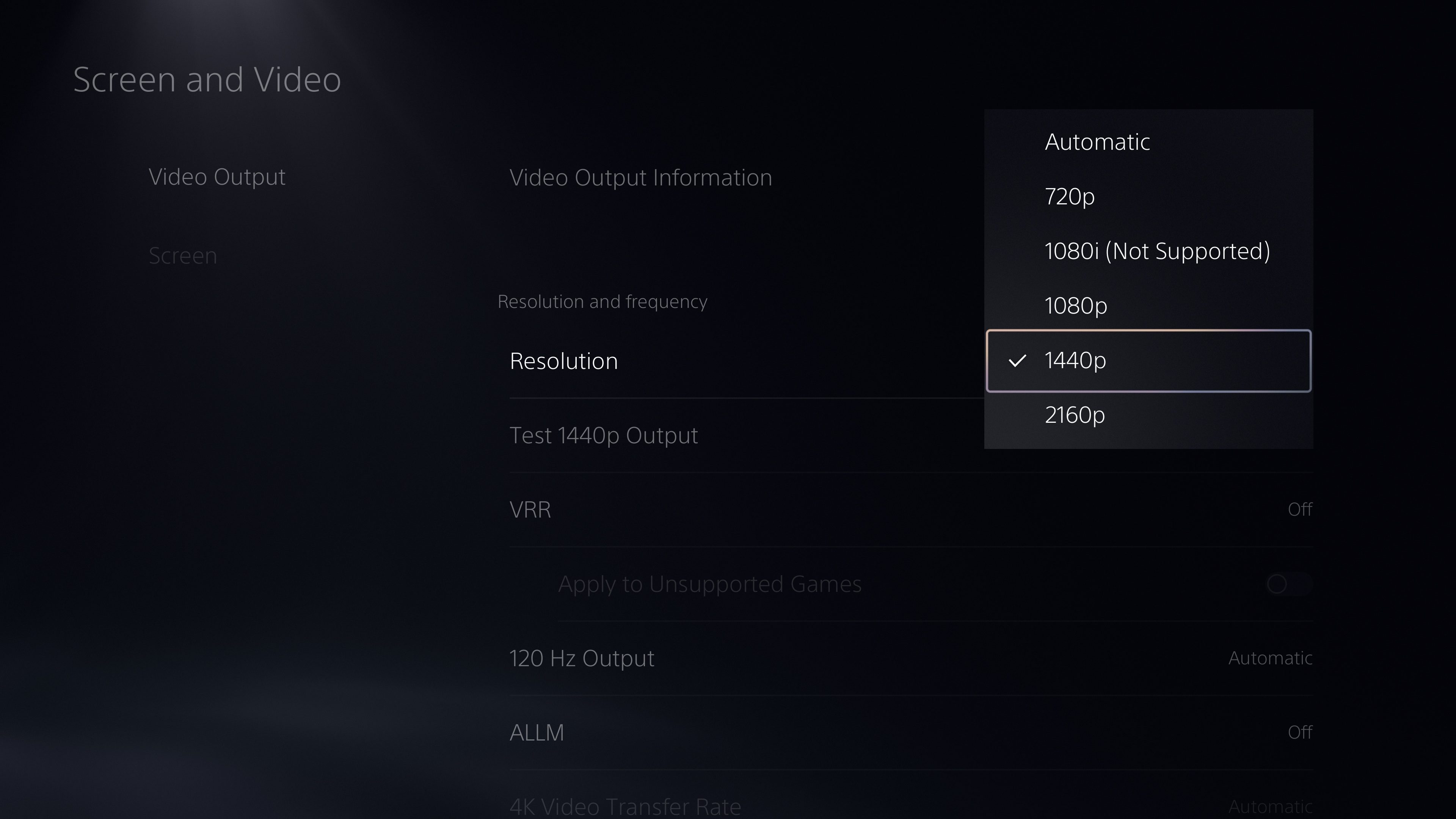
This matters when two search results appear to disagree. Check whether a page describes an initial beta, a later release or the current support controls. The historical screenshot identifies the resolution selector; its displayed VRR state is not evidence that your present console must use the same combination. Nor does an updated capability guarantee that a particular display accepts it.
Use the connected display result for the 1440p decision
Sony documents Test 1440p Output for checking supported SDR/HDR, 60Hz/120Hz and VRR output combinations, and says the resolution must be set to 1440p to use that output. Its connected-HDMI information also describes the device's resolution, VRR and HDR capabilities. Those are more relevant to the present connection than a general claim that a screen is a gaming monitor.
For planning, keep the display model and intended HDMI connection beside the result you want. A desktop monitor's advertised maximum refresh rate is not a promise about this console connection. If the documented test does not establish your intended combination, stop short of claiming compatibility. Consult the specific display documentation rather than treating another person's apparently similar screen as proof.
Credit: Sony Interactive Entertainment / PlayStation. Official source
Separate VRR from a 120fps promise
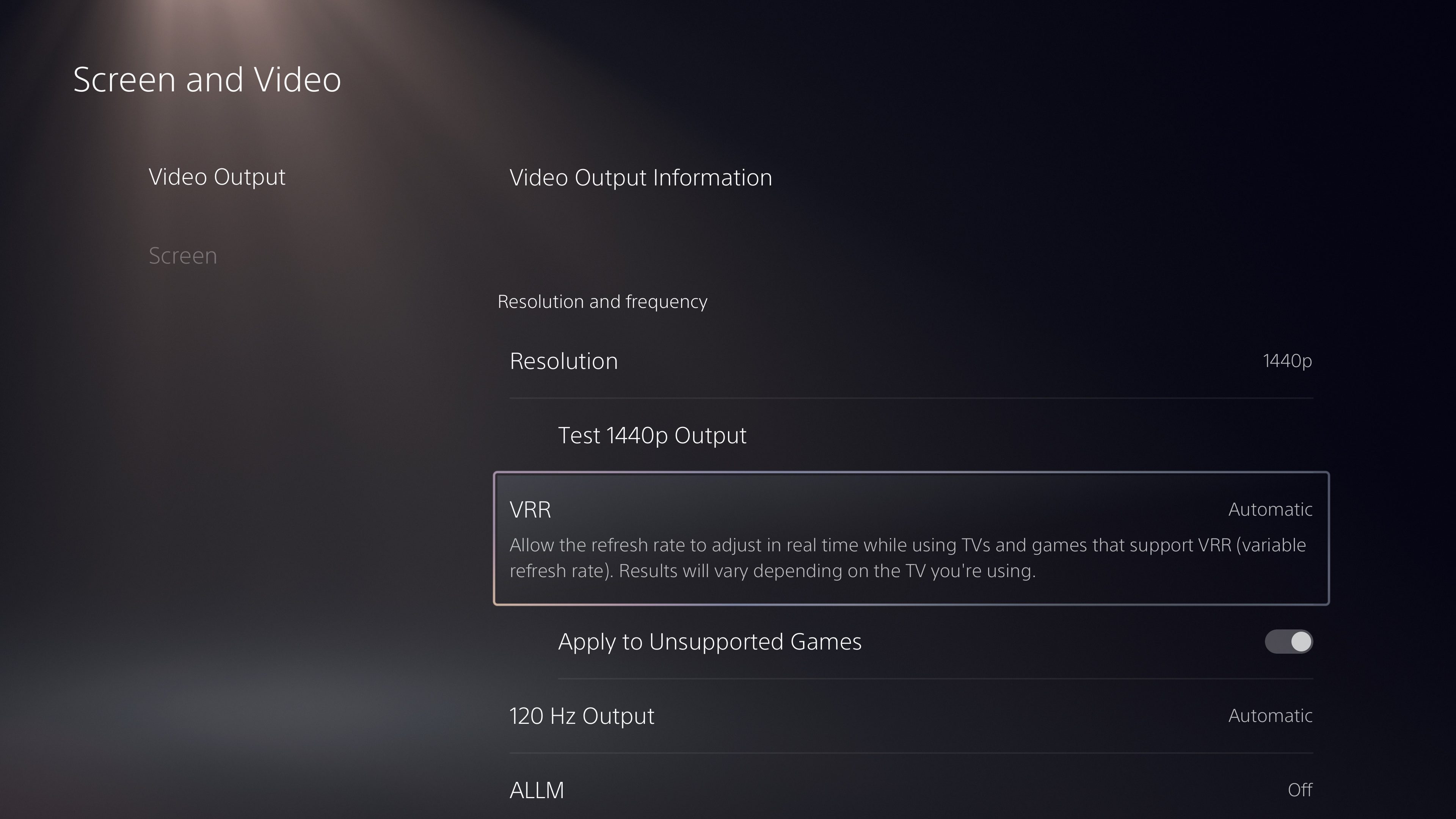
PlayStation describes VRR as synchronizing the display refresh rate with console graphics output on compatible HDMI 2.1 VRR TVs and monitors. The current support page says results vary with the display. This is a capability and behavior description, not a claim that enabling the option makes every game produce 120 frames per second.
Think about the game as well as the screen. A menu option, a compatible connection and a game's available modes are different pieces of evidence. If your real question is how a named game performs on a named display, this source-based guide cannot provide the missing benchmark. Use title-specific primary documentation and appropriate testing before making that performance claim.
Understand why ALLM can remain active
ALLM concerns the display's low-latency mode. Sony explains that supported equipment can switch between low-latency and picture-quality modes according to the input. PS5 support adds an important interaction: during VRR output the console switches to low-latency mode even when the ALLM control is Off. Completely disabling ALLM also requires turning VRR Off.
Decide which outcome you actually need before interpreting an Off label. If you want variable refresh while playing, that choice can carry the documented low-latency behavior with it. If you are investigating picture processing or a display-mode change, record whether VRR was active. This is not a recommendation to disable either feature universally, and it does not quantify a response-time improvement.
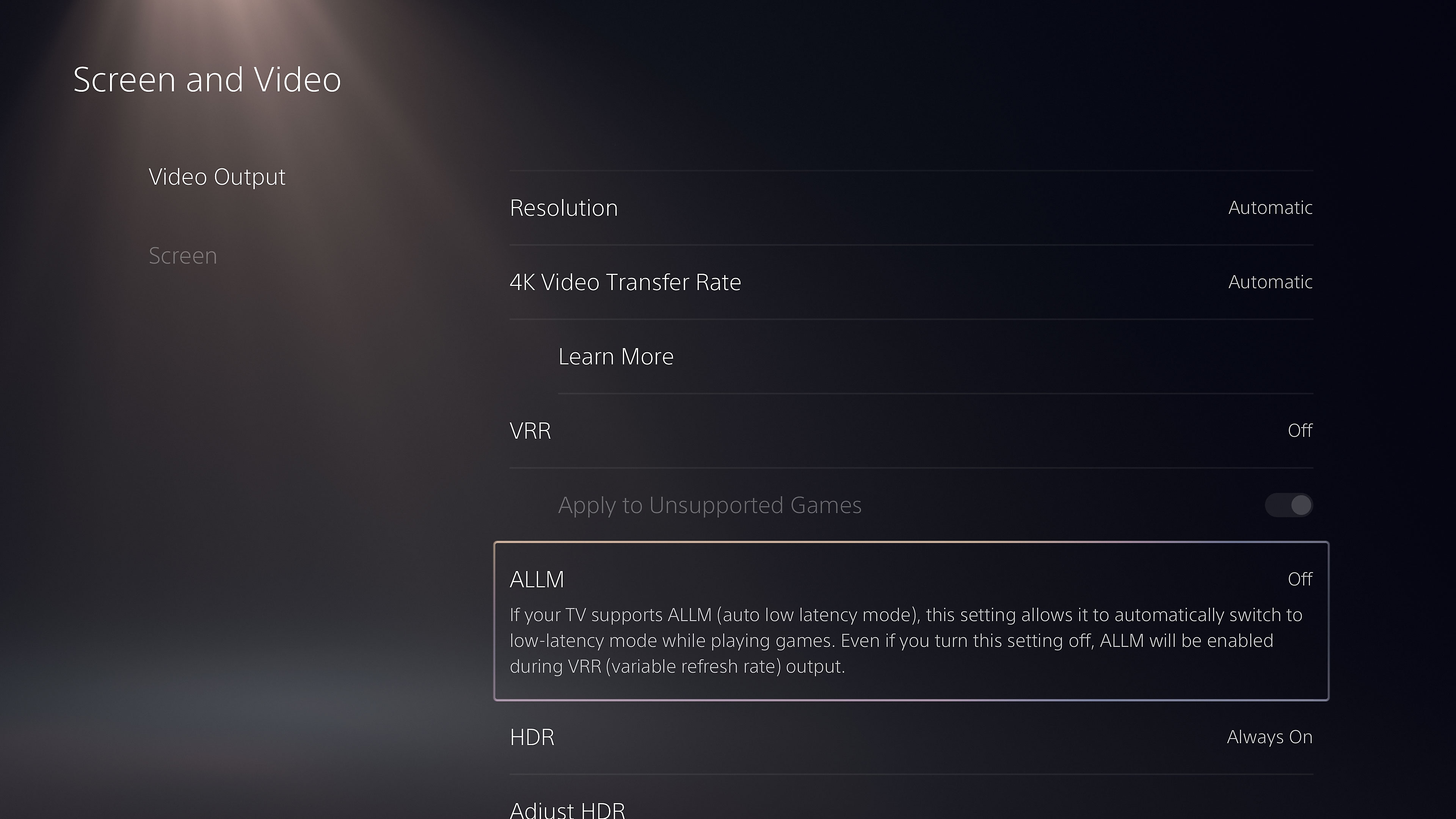
Credit: Sony Interactive Entertainment / PlayStation. Official source
Keep troubleshooting narrower than buying
Sony documents 120Hz Output for displays and games that support it and suggests turning it off when that output causes problems. It also advises disabling Apply to Unsupported Games if unexpected behavior occurs with VRR. Those are bounded official options, not evidence that every flicker or blank image has the same cause.
Keep your working configuration available and consult the current official instructions before changing settings. Name the symptom, game, console and display instead of buying a replacement on the strength of a feature label. The useful endpoint is a verified combination on your actual connection. Until you have that evidence, describe the combination as unconfirmed rather than incompatible or guaranteed.
For a display purchase, treat a 1440p label as the start of the check. Ask separately whether the screen accepts the intended PS5 signal over HDMI, whether it supports the VRR mode you want, and how its low-latency behavior is selected. A monitor's resolution alone does not establish those other capabilities. If a seller lists an appealing feature without explaining the supported connection or signal, keep that point unconfirmed until the display's own documentation and the PS5 connection check agree. This guide does not certify a particular display or a measured input-lag result.
Your next decision
Choose the resolution, refresh behavior and low-latency behavior you want separately. Use current Sony guidance and evidence from the actual connection to confirm the combination. A supported feature is not a tested performance verdict.
Sources and reporting limits
Source-based display decision guide checked November 11, 2026. No monitor, HDMI connection, console setting or game performance was tested for this article.
No monitor buying recommendation, model-specific compatibility guarantee, benchmark, input-lag measurement, HDR calibration walkthrough or repair diagnosis. Historical publisher screenshots illustrate named settings; their shown values are not recommended settings.
- Sony: PS5 resolution and video output
- PlayStation Blog: global update adding 1440p VRR
- Sony: Auto Low Latency Mode
- PlayStation Blog: initial 1440p beta
- PlayStation Blog: VRR rollout
- Sony: PS5 features and official hardware media
Sources checked November 11, 2026.
Update log
Every substantive change to this article, newest first. Only these move the modified date.
- Update· David Bennett· v3
Added practical buying or campaign-choice examples and more closely related reading links. Documented platform behavior and testing limits are unchanged.
- Update· David Bennett· v2
Article approved and published.
Further reading
FINAL FANTASY RESONANCE / PARTY BUILDING What stays when you switch a Vision?
David Bennett · · 3 minGuide Your next handheld starts with three games.
David Bennett · · 6 minGaming audio • Research-led buying guide Five Gaming Headsets Compared
David Bennett · · 16 min