MINECRAFT JAVA
Protect your Java world before trying a snapshot
A backup preserves a moment. A separate working folder keeps the experiment away from your main world. Check both before opening a valuable save.
Source check: November 21, 2026 | By David Bennett
Read the decision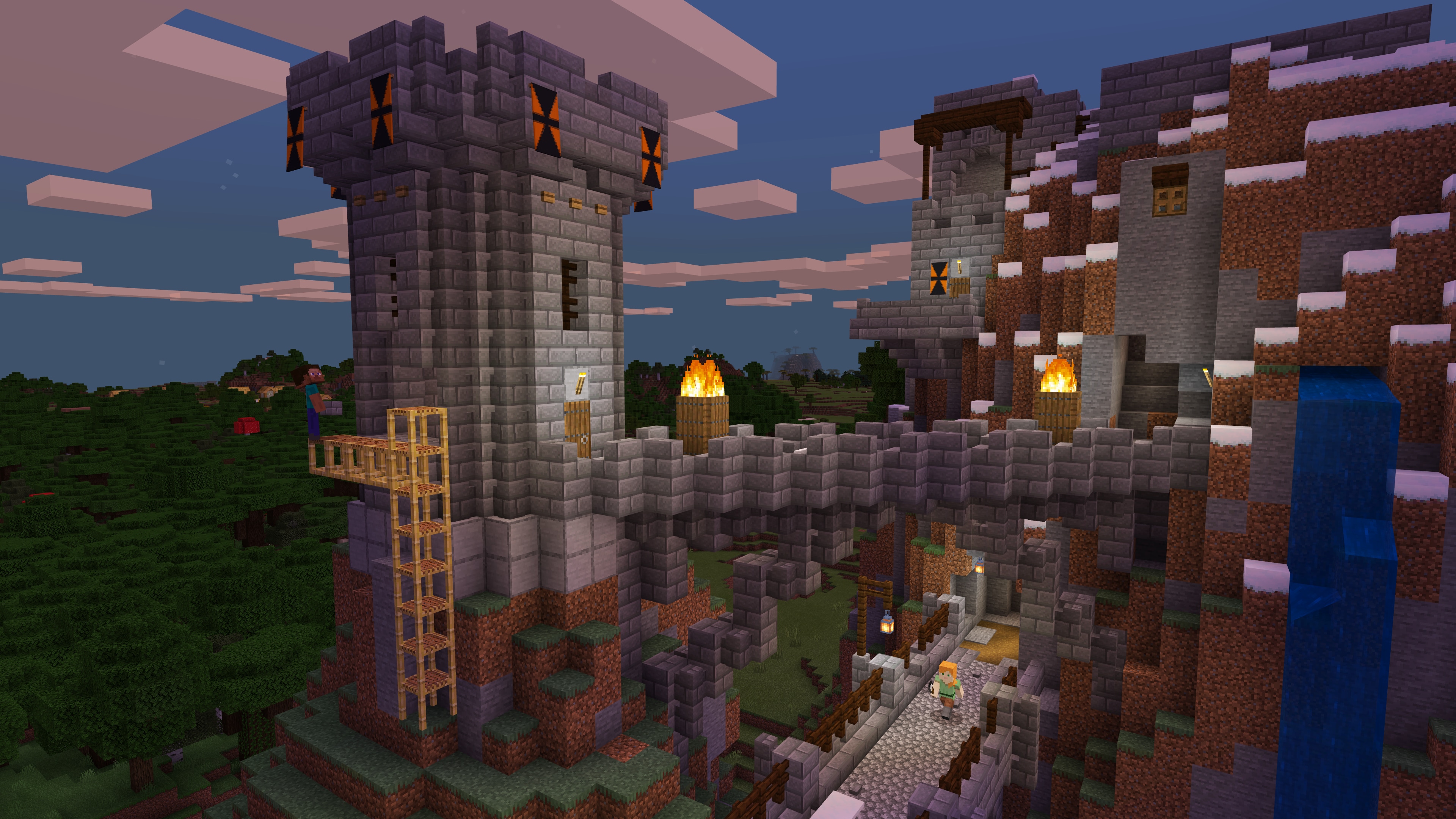
Mojang's official world-building image: context for the kind of established world worth protecting, not a snapshot backup test.
Credit: Mojang Studios / Microsoft. Official source
Before trying a Minecraft: Java Edition snapshot, preserve a dated backup of your valuable world and keep the experimental working location separate from your main worlds. A new installation name alone is not evidence of separation. If either protection is unclear, start a disposable test world instead.
Start with the world you cannot afford to lose
The decision is whether you want a disposable place to explore an unfinished version or a copy of an established world to examine in it. For a first look at snapshot features, a new test world avoids putting your long-running save into the experiment. If the question concerns an existing build, keep the original out of that experiment and work from a protected copy.
This guide concerns local single-player Minecraft: Java Edition worlds in the Minecraft Launcher. It does not replace Bedrock Realms backup instructions, a multiplayer server backup policy, or a modpack migration guide. Before changing versions, identify the world, the release you normally use and where its backup will be kept. Stop if you cannot confidently distinguish the original from a test copy.
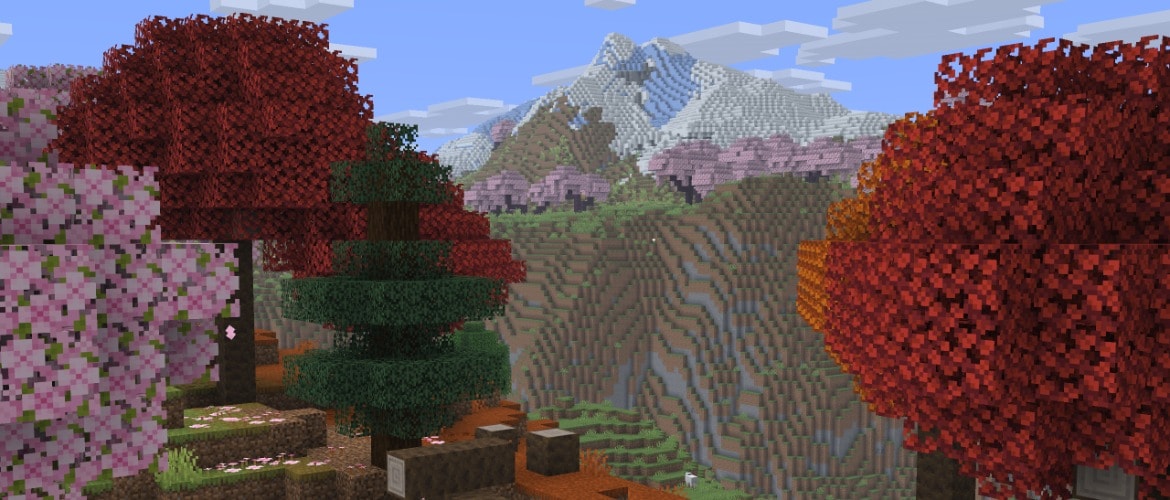
Credit: Mojang Studios / Microsoft. Official source
Make a dated backup before changing versions
Minecraft Help documents the built-in route: launch Java Edition, choose Singleplayer, select the world, choose Edit, then Make Backup. The documented result is a ZIP file whose name includes the backup date. Use the normal installation that already opens the world; the reason for doing this first is to preserve a point before the experimental session.
Return to Edit World and choose Open Backups Folder to locate the result. Check that the dated file corresponds to the world and time you intended. Seeing a ZIP is the documented completion indicator, not proof that we have restored or validated your particular save. If the backup is missing, the name is unexpected or the operation reports an error, resolve that before launching a snapshot.
Keep the backup outside the experiment
A backup has a different job from a working copy. The working copy is allowed to change as you explore; the backup is the version you intend to preserve. Do not make the only retained ZIP the file you repeatedly replace while experimenting. Give the protected copy an identifiable date and keep a note of the release it came from.
The companion Help article also describes locating backups through the Launcher: select Java Edition, open Installations, locate the relevant installation, select its folder icon, then open backups. It says an existing backup can be moved to an external drive or another device running Java Edition. Choose a location you can find again, with enough space for the archive and any separate working world. Moving an archive is preservation, not a claim of cross-version compatibility.
Credit: Mojang Studios / Microsoft. Official source
A separate installation name is not the safety check
The November 17 snapshot notes tell Java players to enable snapshots in the Launcher's Installations tab. More importantly, they warn that testing versions can corrupt worlds and advise backups and/or a different folder from the main worlds. Selecting an experimental version therefore should follow the protection decision, not precede it.
Treat folder separation as a separate check from the installation label. A name such as Snapshot test is useful to a person, but the name alone does not establish where that installation reads worlds. If you cannot verify that the experimental working location is different from the main one, do not open the valuable save. Use a disposable new world or pause until the current Launcher documentation resolves the location. This is a precautionary decision rule, not a tested menu-by-menu Game Directory setup.
Know what a successful experiment does not prove
A snapshot reaching its title screen does not establish that a particular old world will remain intact. Nor does a world opening once establish that later saves, future snapshots or a return to the previous release will work as expected. Mojang's warning is about testing versions; it is not withdrawn because an installation starts successfully.
Keep the experiment recognizable while you use it: the intended version, a disposable or copied world, and the protected pre-change archive should remain distinct. If the world list is unexpected, a compatibility warning appears or the copy behaves incorrectly, stop rather than trying repeated version switches on the original. Record which version and copy were involved so subsequent troubleshooting does not confuse the experimental state with the saved fallback.
Credit: Mojang Studios / Microsoft. Official source
Plan recovery around the preserved point in time
The fallback you prepared is the world as it existed when that archive was made. Any later experimental progress is a separate state; this guide does not promise to combine it with the old world or make it safe to open in an older release. Keep the unchanged archive while seeking the current official recovery instructions for the specific problem.
Before another experiment, repeat the protection decision for that version and that world. Recheck this guide if Minecraft changes its backup screens, Launcher installation controls or snapshot warnings. The practical stopping rule stays simple: if you cannot identify a protected pre-change copy and keep the main world outside the experiment, postpone the snapshot session. Trying a new feature is optional; gambling the only copy of a world is not required.
Your next decision
Preserve the world first, then choose where to experiment. A dated backup and a distinct working location solve different problems; neither is a reason to test on the only copy.
Sources and reporting limits
Source-based decision guide from official Minecraft Help and Mojang snapshot notes, checked November 21, 2026. No game, backup restoration or Launcher isolation workflow was executed.
The current Mojang snapshot warning was read in the primary page and its original HTML preserved. Help instructions were verified through substantive indexed primary-source bodies; direct Help responses returned a JavaScript shell. No exact Game Directory navigation or recovery procedure is asserted.
- Minecraft Help: Save a Backup of Your Minecraft: Java Edition World
- Minecraft Help: Find Your Minecraft: Java Edition Backup World
- Mojang: Minecraft 26.4 Snapshot 10 (November 17, 2026; URL retains snapshot-9)
- Mojang: official Minecraft world-building media
Sources checked November 21, 2026.
Further reading
FINAL FANTASY RESONANCE / PARTY BUILDING What stays when you switch a Vision?
David Bennett · · 3 minGuide Your next handheld starts with three games.
David Bennett · · 6 minGaming audio • Research-led buying guide Five Gaming Headsets Compared
David Bennett · · 16 min