MINECRAFT BEDROCK / KEEP YOUR WORLD
Before changing your Minecraft Realm, decide which world to keep
Downloading a copy, restoring a save and replacing a world change different things. Protect the version your group means to keep.
Source check: November 11, 2026 | By David Bennett
Read the decision
Historical Minecraft PC-bundle artwork from 2021. It identifies the game; it does not show Realms save controls or a transfer test.
Credit: Mojang / Microsoft via Xbox Wire. Official source
Download a copy before replacing a Realm world you care about. A download preserves a local version; restoring a save makes that saved version the active Realm world. Replacing a world chooses a different world for a slot. Start by deciding whether you want a copy to keep, an earlier version to play, or a different world for the group.
Name the result before opening the world controls
Write down the Realm and world you intend to preserve, and the result you actually want. Keeping a copy while your friends continue their current world is a different goal from returning everyone to an earlier save. Starting a different shared world is a third decision. This guide concerns Minecraft: Bedrock Edition Realms; it does not transfer these menu details to Java Edition.
Use that distinction as a check before any confirmation. If your plan says keep a copy but the screen describes changing the active world, stop and identify the operation again. A familiar world name is useful context, but the intended version matters just as much.
Credit: Gamer-Z Paradise explanatory graphic; relationships from Mojang documentation. Official source
Use a download when the copy is what you want
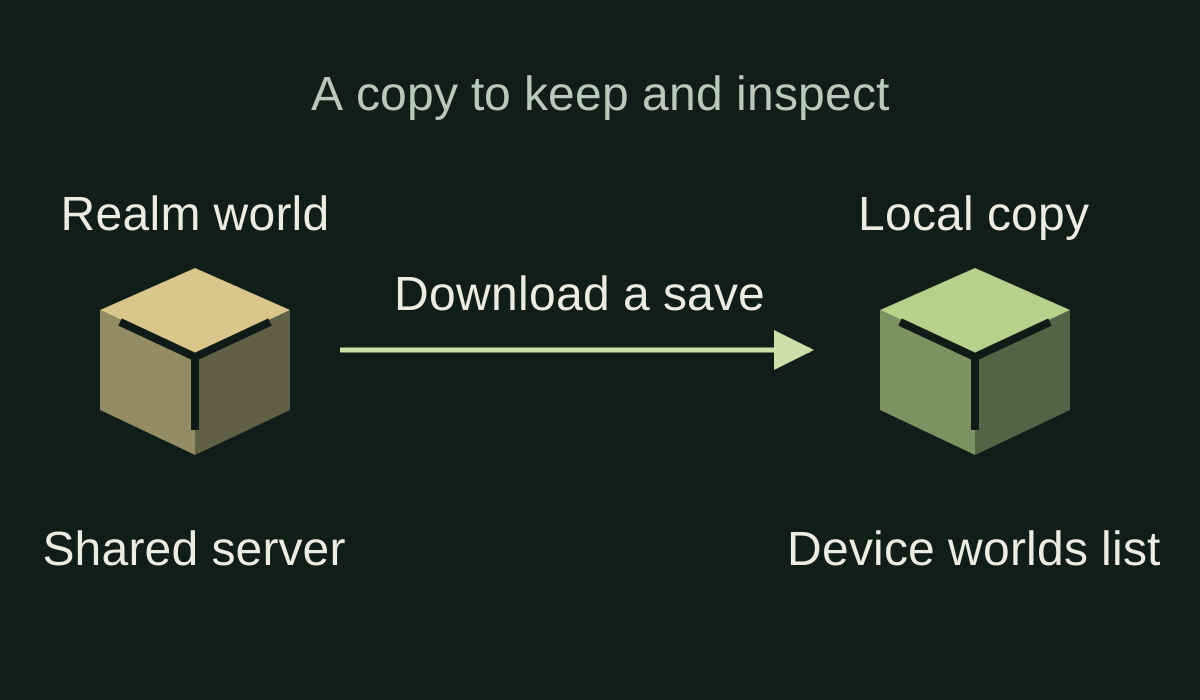
Mojang describes a downloaded Realm world appearing in the device's local worlds list, where it can be played offline. That gives you a concrete success state to look for: the expected world exists locally. A promise to download later is not the same as an available local copy.
Before planning a replacement, allow time to find and inspect that local world. As a cautious editorial check, compare a familiar build or location with the version you meant to retain. This is a suggested verification task, not a report that we downloaded or opened your world. Do not treat a failed or unfinished transfer as a completed safeguard.
A restore changes the world your group plays
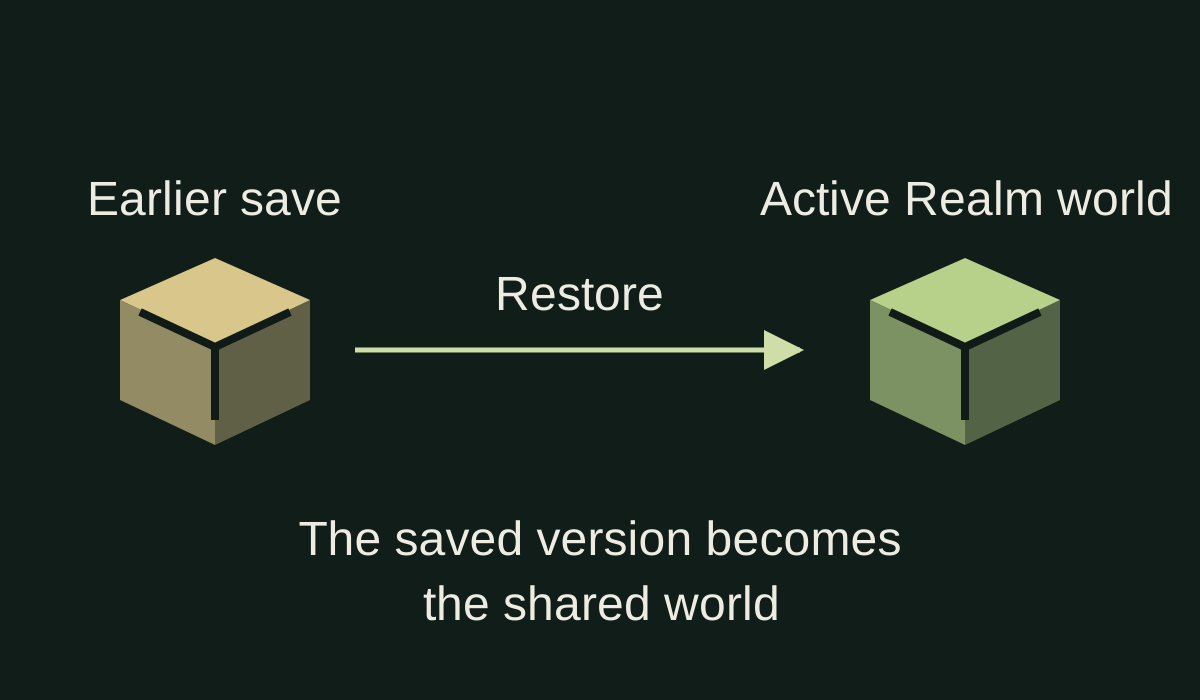
The current Realms Saves description separates downloading from restoring: restoring a save makes it the Realm's current active world. Choose it when that earlier version is the one you want the group to play, rather than simply because you want another copy of it.
Agree on the intended save before proceeding. Ask which building session or incident you are trying to recover from, and which later work the group still wants to retain. If players disagree about that target, resolve the choice before changing the shared world. Keep a separate copy of the version you may want to return to; this guide does not promise that a mistaken restore has an automatic undo.
Credit: Gamer-Z Paradise explanatory graphic; relationships from Mojang documentation. Official source
A world slot is a different choice from a saved moment
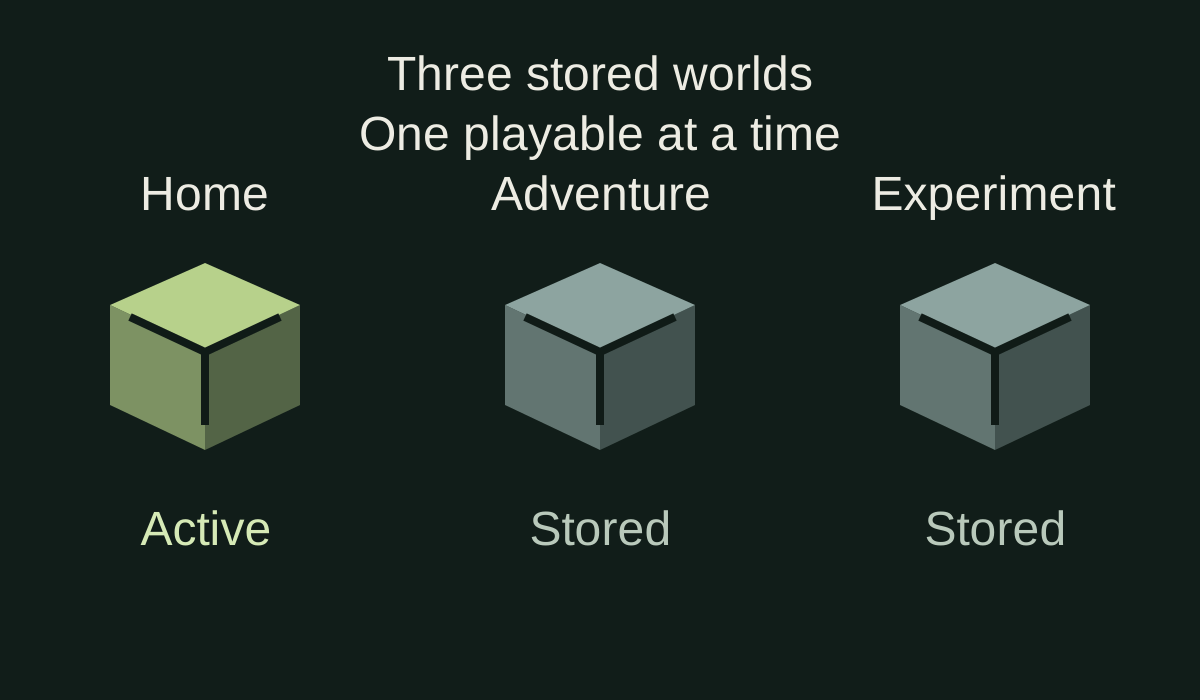
Minecraft's current Realms FAQ says a Realm can store three worlds with one active at a time. Its world-change tutorial separately describes replacing the world in a selected slot. A slot therefore answers which stored world you are working on; a save answers which version you want to recover or download.
Make the slot and version explicit in your plan. For example, the group may want to keep a local copy of its existing survival world before substituting a new adventure. That does not require treating the older world as disposable. Mojang warns that replacing a world can lose progress and recommends downloading first.
Read the current Hub instead of following an old screenshot blindly
Bedrock 26.40 brought management and restoration of automatic and manual saves into Realms Hub. The current product page points to the World area's Saves controls and says the save features also apply to Core and Plus, with manual storage allocation varying by subscription tier. Check the labels actually shown by your current client rather than assuming an old slot-screen tutorial describes every current screen.
The 26.40 notes also say an outdated client can reach the Hub while being unable to play until updated. Later 26.60 notes report upload and download reliability improvements. Neither statement proves a particular transfer will succeed on your device. If the expected controls or world are missing, stop before replacement, check the client version and account context, and use current Minecraft support rather than improvising a destructive workaround.
Credit: Gamer-Z Paradise explanatory graphic; relationships from Mojang documentation. Official source
Separate backup retention from subscription expiry
Mojang warns that individual Realm backups are not retained indefinitely. The Realms FAQ separately gives owners 18 months after a subscription expires to download their worlds. Those statements describe different retention questions; the subscription window is not a promise that every earlier backup remains available for 18 months.
For a world that matters, make the preservation decision while you can still see the version you want. Identify the target, obtain the intended local copy, verify it is present, then decide whether to restore or replace. If preservation is still uncertain, keeping the existing shared world unchanged is the safer stopping point.
Your next decision
For an archive, download and verify the local copy. For a rollback, identify the saved version the group wants active. For a new shared world, preserve the old one before replacement. These are separate decisions, so make each one explicit before confirming a change.
Sources and reporting limits
Source-based decision guide, checked November 11, 2026 against official Minecraft pages and Bedrock release notes. We did not sign into a Realm, execute a download, restore a save or replace a world. The diagrams explain documented relationships and are not game-interface screenshots.
Bedrock Realms only. No Java menu walkthrough, platform-specific transfer guarantee, file recovery, world-size limit, plan-price comparison or tested rollback procedure. The official generic world-change tutorial has older menu wording; current Hub documentation governs the navigation discussion.
- Minecraft: change your Realm worlds
- Minecraft Realms current FAQ
- Realms Pro: Saves section and Core/Plus applicability
- Bedrock 26.40 official release notes
- Bedrock 26.60 official release notes
Sources checked November 11, 2026.
Further reading
FINAL FANTASY RESONANCE / PARTY BUILDING What stays when you switch a Vision?
David Bennett · · 3 minGuide Your next handheld starts with three games.
David Bennett · · 6 minGaming audio • Research-led buying guide Five Gaming Headsets Compared
David Bennett · · 16 min