How many PS5 Access controllers does one player need?
Start with the actions in one game. A second Access adds another set of controls, while a DualSense can cover a touch pad swipe or motion input.
Start with one Access controller if its stick and assigned buttons cover the actions you need. Two Access controllers can work together for the same PS5 player. If your game calls for a touch pad swipe or motion input, you can pair a DualSense with either arrangement. The useful question is which action the extra controller will handle.
PlayStation Support: using multiple Access controllers · PlayStation: Access controller features and combinations
1. Write down one difficult moment
Pick a sequence you want to play. Perhaps you can move through a scene and turn the camera separately, but the game asks you to do both while holding another button. Write down the actions that have to happen together. Include any input you need only occasionally, such as a swipe to open a menu. A setup that covers every combat action can still leave you stuck at that menu.
Look at the game's own control options before counting controllers. In The Last of Us Part I on PS5, Naughty Dog documents custom mappings for commands including touch pad swipes and controller shakes, as well as camera assistance. If a remap handles your particular obstacle, cross it off the hardware list. Check the options in the game you actually plan to play.
2. Give one Access controller a defined job
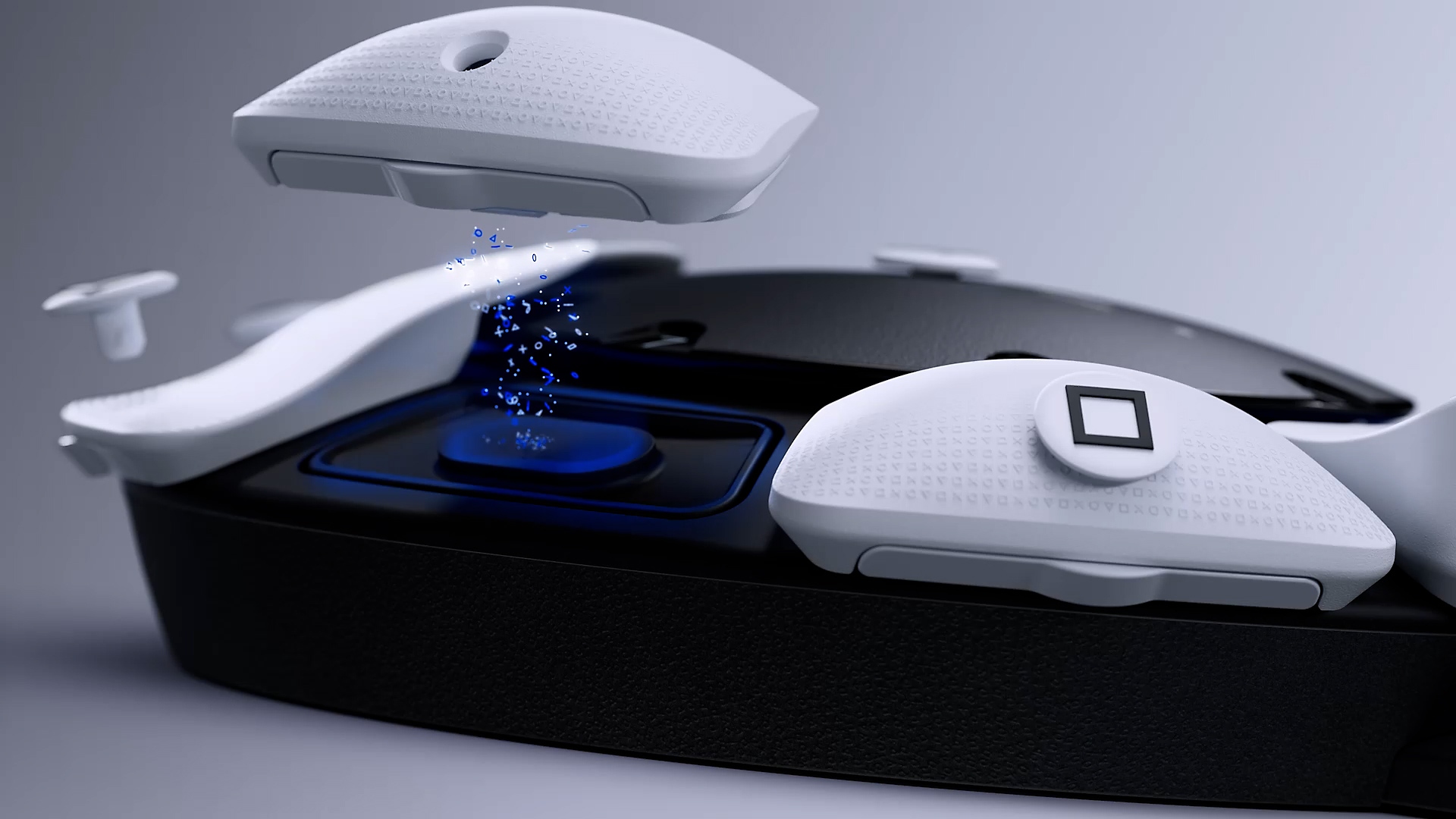
Sony's kit has a single stick on an adjustable arm and swappable button caps. Decide where the stick and your most frequently used buttons should sit. A PS5 profile can change button assignments, make a button stay held after a press or assign two button inputs to one press. If holding a button is the obstacle, a toggle is worth considering before a second unit.
Keep the console menus in your plan. Sony identifies cross, circle, options and left-stick or directional-button input as necessary to navigate the PS5. A game-specific profile can leave some of these out, but then you need the base profile or another controller to reach those functions. For first-time setup, Sony also says the PS5 should already be set up and paired with a DualSense.
PlayStation: Access controller features and combinations · PlayStation Support: Access profiles and button assignments · PlayStation Support: pairing and built-in controls
3. Choose two Access units for a second control surface
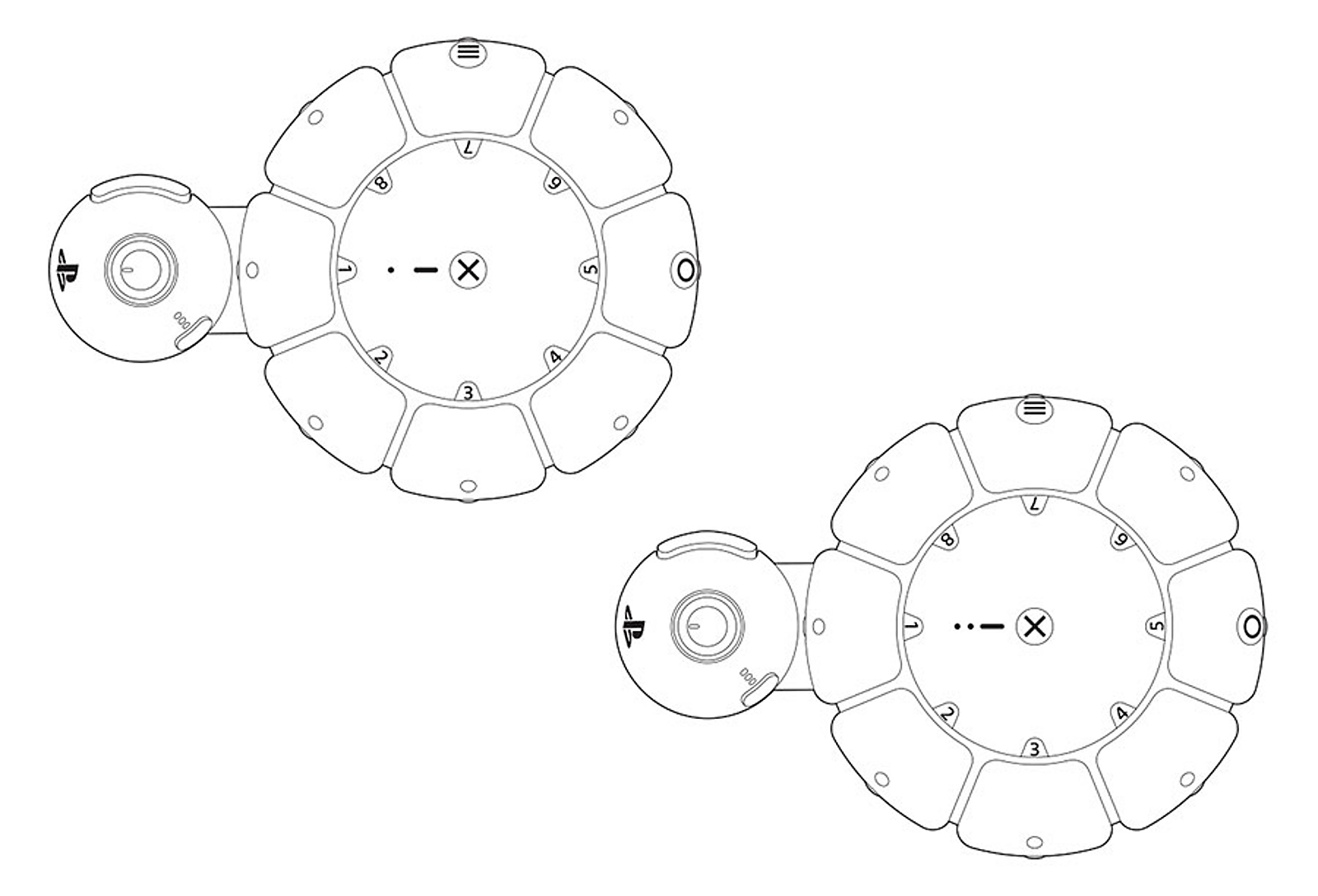
Two Access controllers can act as one virtual controller. This makes sense when you want a separate stick or another group of buttons within reach in a different position. Sketch the job of each unit before buying another. For a game that uses movement and camera controls together, identify how you intend to operate both, then check its mapping options.
Sony's two-controller setup assigns both units to the same PS5 user. The first unit shows one controller indicator light and the second shows two. Sony also lets you assign a profile to one or both controllers. Give the profiles names that tell you which arrangement to use when you come back to that game.
If you're arranging couch co-op, count players separately. Sony allows other people to play on the console, but only one player per PS5 can use its Access controller or controllers. Two Access units sharing that user's controls will not give two people separate Access-controlled characters.
PlayStation Support: using multiple Access controllers · PlayStation Support: pairing and built-in controls · PlayStation Support: Access profiles and button assignments
4. Keep a DualSense for the feature the game uses
An Access controller can supply a touch pad button press. A finger swipe across the touch pad is a different input. Sony lists swiping, motion sensing, adaptive triggers and vibration among the functions the Access unit itself does not supply. Check whether the game demands a gesture, uses it optionally or lets you map it to a button.
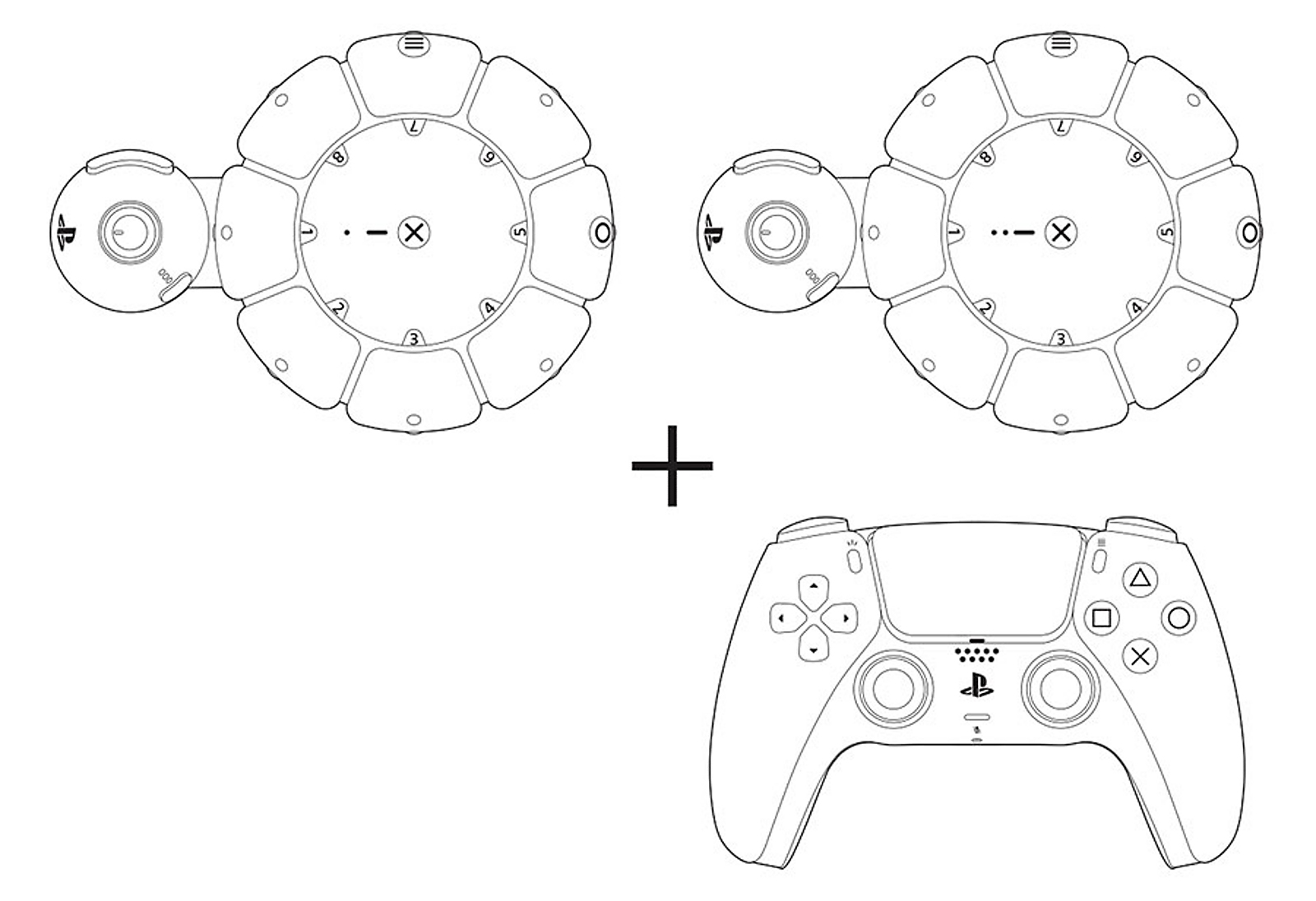
For a gesture you want to keep, Sony supports one or two Access controllers alongside one DualSense. A DualSense Edge can take the DualSense's place. Plan who will operate that extra controller and keep it within reach for the exact moment it is needed. A partner helping with a swipe is contributing to the same player's controls.
PlayStation Support: using multiple Access controllers · PlayStation Support: pairing and built-in controls · PlayStation: Access controller features and combinations
Your controller plan
Give the extra controller a job you can name. “I want to turn the camera while I move,” or “I need to swipe when the map opens.” For another physical layout, consider a second Access. For a gesture the game requires, plan where the DualSense will sit. If a remap already handles the action, your existing arrangement may be enough.
Based on PlayStation's PS5 controller documentation and Naughty Dog's published game settings, checked November 3, 2026. We have not tested individual reach, a game session, mounts or third-party switches. Recheck the current controller documentation and the game's settings if a software update changes the available inputs.