MONITORS / FOLLOW THE DATA
HDMI picture, dead monitor USB ports? Check upstream
Your display connection and your accessory connection can be two different paths.
Source check: November 16, 2026 | By David Bennett
Read the decision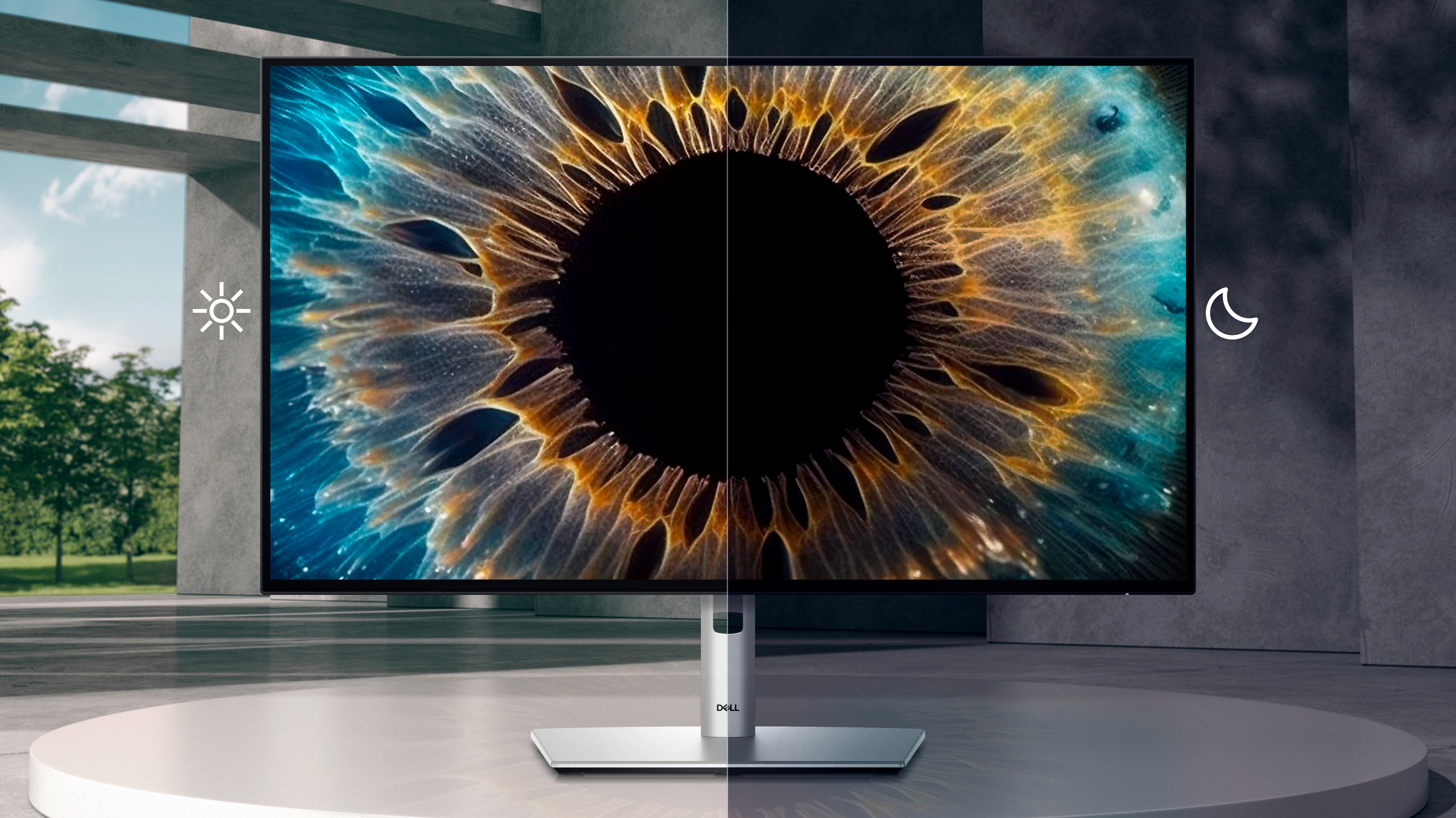
Official U2724D promotional illustration. The lighting comparison is manufacturer artwork, not a Gamer-Z display test.
Credit: Dell. Official source
An HDMI picture does not prove that the monitor’s USB ports are connected to your computer. Dell documents a separate upstream data connection for its USB hubs when display and data use separate cables. Identify that route before replacing a keyboard, mouse or monitor. A USB-C connector’s documented role still matters.
A visible game does not establish a USB data connection
An HDMI picture answers a display question. A keyboard, mouse, webcam or USB receiver attached to the monitor needs a path back to the computer as well. Dell’s downstream-port guidance identifies the missing upstream connection as a cause when accessories are not recognized, especially with an HDMI or DisplayPort display connection. Begin with those separate jobs before treating the monitor as broken.
For a gaming desk, name the actual missing result: the mouse receiver is not recognized, the webcam is unavailable, or a keyboard does not respond. Do not replace that description with a performance claim. This article has not measured a hub’s latency or tested a peripheral. The useful first decision is whether your documented connection even carries the data that accessory needs.
Credit: Dell. Official source
Find the upstream port rather than another convenient socket
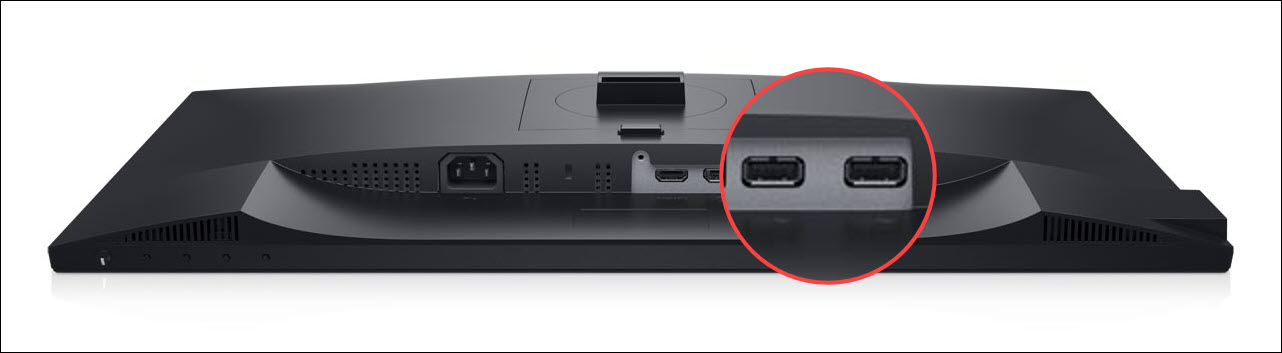
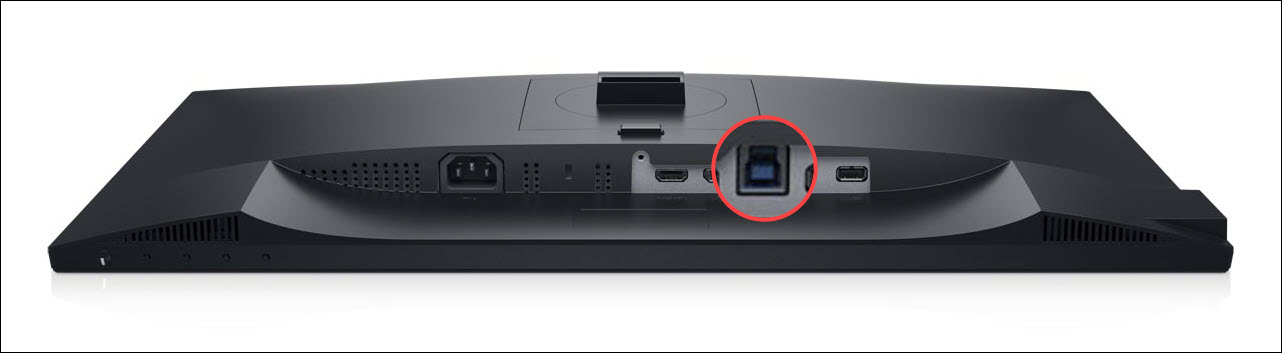
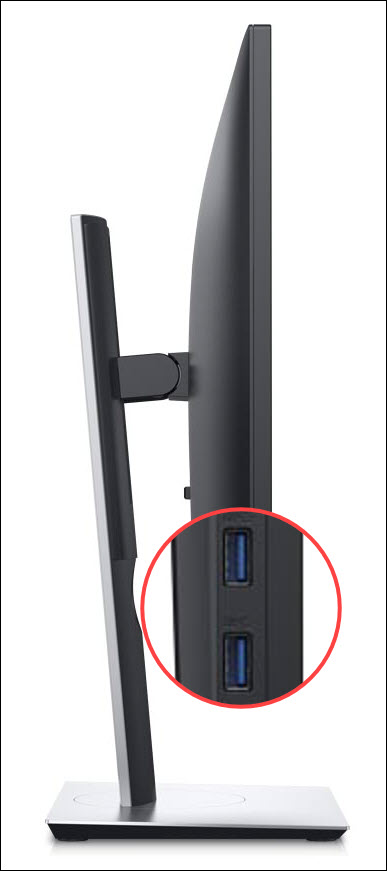
Dell distinguishes the upstream connection to the computer from the downstream sockets used by accessories. Its support photographs show P2421D examples with downstream ports on the bottom and side, and a separate USB Type-B upstream connector. Those locations are examples, not a port map for every Dell or Alienware display. Use the exact model’s manual to identify each socket before connecting anything.
Write down which computer should receive the accessory. A cable that ends at the wrong computer does not complete the intended path, even when both machines have a picture on the desk. Keep the existing arrangement as a reference while identifying connections. Photographing your own cable labels can help you return to that arrangement; a manufacturer image cannot prove how your equipment is currently wired.
Do not give every USB-C socket the same job
USB-C describes a connector shape; the manufacturer still has to document the port’s role. Dell’s current U2724D product specification explicitly calls its USB-C upstream connection data only. Its display inputs and downstream accessory ports are listed separately. That model is a concrete counterexample to the assumption that every monitor USB-C socket accepts laptop video. It is not a recommendation to buy that monitor.
Conversely, Dell’s general support article describes selected monitors with a USB-C DisplayPort or Thunderbolt input that can carry display and data. Read your own model’s supported input and cable requirements rather than combining the promises of two different products. A familiar shape is not enough evidence for a one-cable setup, charging capability or a particular display mode. Resolve the exact model before purchasing another cable.
Credit: Dell. Official source
Use the manufacturer’s connection prerequisites
Dell documents a USB Type-B-to-Type-A upstream route for monitors using that input, and a USB-C upstream route for supported USB-C models. The prerequisite is the corresponding data connection between monitor and computer, alongside the display path when those jobs are separate. Follow the supplied cable and model documentation rather than choosing a cable solely because it fits an accessible port.
This is a documentation-based check, not an executed installation sequence. Confirm that the monitor is powered, identify the source computer and find the documented upstream port. Do not force a connector, substitute an undocumented adapter chain or change firmware to compensate for an unidentified connection. If the manual and physical labels disagree, stop and resolve the device identity with official support. A new cable should answer a known requirement.
Isolate the accessory before changing the whole desk
Dell’s troubleshooting guide includes trying the USB device directly in a computer port, another monitor port, a different cable and another computer. These are separate diagnostic comparisons. A direct connection that works may narrow the investigation to the hub path; it does not identify a specific failed component by itself. A failed direct connection also needs its own device and computer checks.
Change one documented connection at a time and record the result. Keep files safe before disconnecting storage, and follow the operating system’s supported removal process for any connected drive. Avoid using a storage device for the first experiment if you only need to establish whether a mouse or keyboard is recognized. This conservative choice reduces unrelated changes; it is not a claim that we ran a successful recovery test.
Credit: Dell. Official source
Define success without promising every feature
The immediate success state is specific: the intended computer recognizes the intended accessory through the documented monitor data path, and the accessory performs its basic intended task. That result would not establish maximum USB throughput, gaming response time, webcam format support or charging power. Treat each of those as a separate requirement with its own documentation or measurement.
If recognition still fails, preserve the last working connection and use the exact model’s support process. Do not erase profiles, reinstall unrelated software or update firmware just to make a generic guide appear complete. No such operation was performed for this article. The decision is whether the missing upstream path explains the symptom; a remaining fault should stay an unanswered support question until there is evidence to identify it.
Your next decision
Find the exact upstream data connection for your monitor, keep it separate from the display path, and verify recognition on the intended computer before diagnosing a more complex fault.
Sources and reporting limits
Source-based decision guide checked November 16, 2026 against official Dell support and product documentation. No hardware connection, throughput, latency or recovery test was executed. Manufacturer illustrations are identified by their original context.
No universal USB-C compatibility, gaming latency, charging, KVM, video-chaining or firmware procedure. The body photographs depict the P2421D; the hero depicts the U2724D. They are model-identified documentation examples.
- Dell: upstream connection for downstream USB ports
- Dell: isolate a monitor USB issue
- Dell: USB connector and monitor-port guide
- Dell U2724D: exact data-only upstream specification
Sources checked November 16, 2026.
Further reading
FINAL FANTASY RESONANCE / PARTY BUILDING What stays when you switch a Vision?
David Bennett · · 3 minGuide Your next handheld starts with three games.
David Bennett · · 6 minGaming audio • Research-led buying guide Five Gaming Headsets Compared
David Bennett · · 16 min