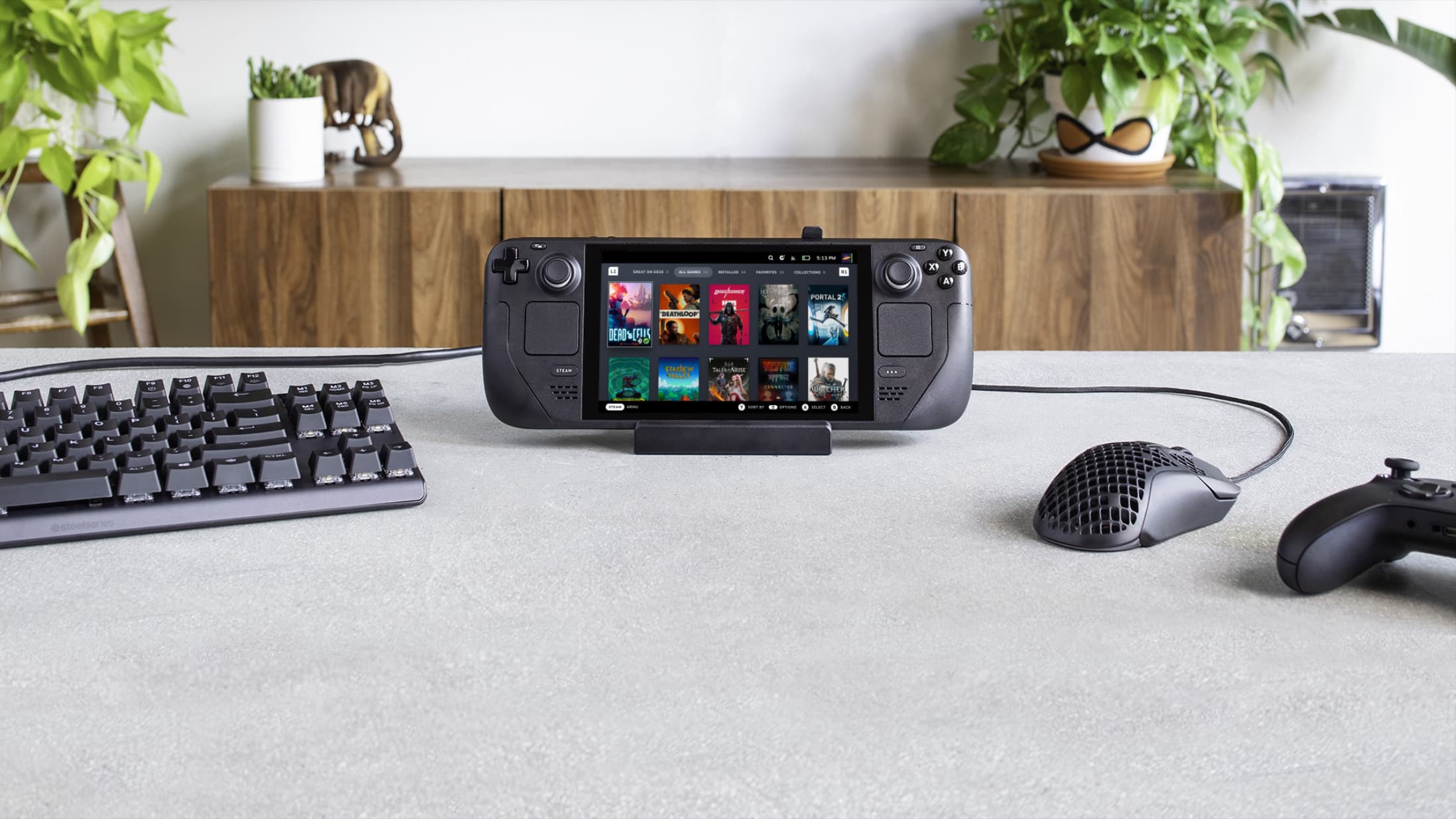
Official Valve Docking Station promotional setup. Image: Valve. Not a tested configuration.
Docking a Steam Deck does not unlock a faster performance mode. Valve describes it as connecting a USB-C hub to a PC. Choose a dock or hub for the screen, power connection and accessories you need, then judge game settings separately. An advertised display-output limit is not a measured gaming result.
Start with the screen you already own
Write down the monitor or television input you intend to use, the available cable and the display mode you want. The official Docking Station offers DisplayPort 1.4 and HDMI 2.0, with output support up to 4K at 60Hz or 1440p at 120Hz. Those are connection specifications, not a guarantee that a demanding game renders at either resolution and frame rate. [D4]
For example, “connect to the living-room television” and “run this game at native 4K” are different requirements. A successful video signal establishes the first. It does not establish the second. Keep that distinction visible when comparing accessory listings.

Treat a hub as a candidate, not a guarantee
Valve welcomes third-party hubs and docks and says most USB-C compliant models work, while noting compatibility limits. Its support guidance does not officially support Thunderbolt or DisplayLink docks. A similar-looking connector alone is therefore an incomplete compatibility check. [D1, D2]
Compare the exact model’s stated video outputs and Steam Deck support with your intended setup. If the listing is vague, ask its maker about that combination before buying. This guide does not certify every USB-C hub, endorse an untested model or infer support from a product photograph.
Include power in the plan
A hub with USB-C Power Delivery passthrough can power the Deck while connected, but the hub also needs power for itself and attached devices. Valve warns that this reservation can produce a slow-charger notification. Do not assume the charger’s printed wattage reaches the handheld unchanged. [D2]
List the charger, its cable and the devices sharing the hub. A keyboard and mouse setup presents a different connection plan from one with external drives and other powered accessories. We have not measured either arrangement. The point is to check the whole path, rather than buy ports first and investigate power afterward.
Keep adapters and model names explicit
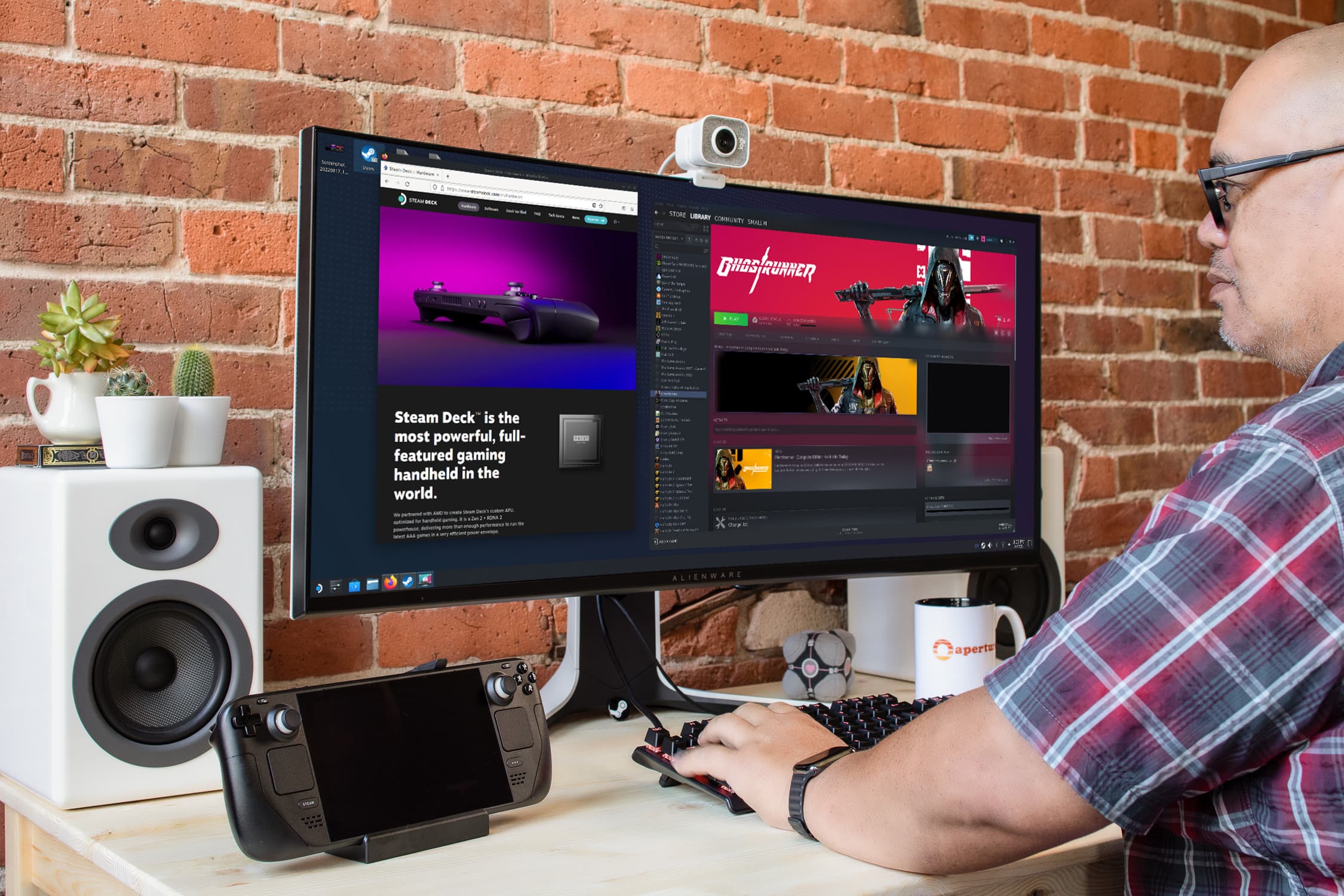
The official Docking Station is shaped for both Steam Deck OLED and LCD. For other docks, check physical clearance as well as electrical support, especially if you use a case. Valve’s support page also excludes passive DisplayPort-to-HDMI adapters from supported configurations. [D1, D2]
Keep your proposed chain simple enough to describe: Deck, hub, cable, screen. An extra adapter adds another item whose specification needs checking. This is purchasing and setup planning; follow Valve’s current support instructions for connection problems rather than treating this article as a tested repair sequence.
Know what a good purchase would solve
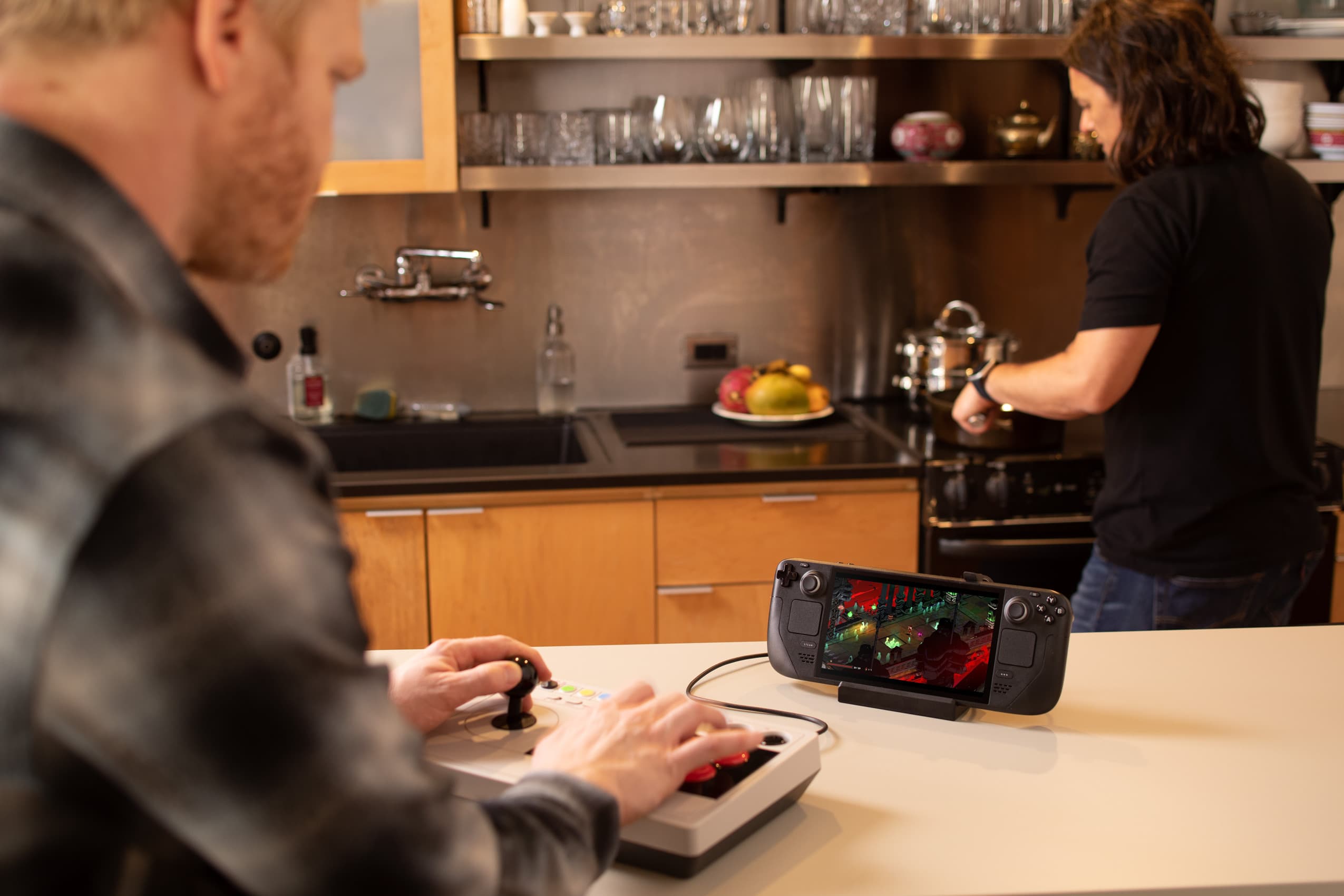
A useful dock solves a specific shortage: a display connection, wired network access or enough suitable peripheral ports. Valve’s FAQ says docking itself provides no performance benefit. [D3]
If the real problem is a game that already struggles in handheld mode, do not buy a dock expecting it to supply a faster graphics processor. If the problem is that you want to use a television and controller, a connection-focused comparison makes sense. Start with that goal, and keep any performance claim out of the purchase decision unless it has separate evidence.