NINTENDO SWITCH 2 / STORAGE
Upgrading Switch 2 storage? Here’s what moves to the new card
A larger microSD Express card can hold your downloaded games and captures. Your progress lives on the console, and the kind of card you have determines what you can bring across.
DOCUMENTATION CHECKED NOVEMBER 5, 2026 · By David Bennett
Find your next decisionYour save stays on your Nintendo Switch 2 when you replace its storage card. The files you need to plan for are the game installations and the screenshots or videos you want to keep. If your current card is already microSD Express, you can move its contents to a larger Express card for the same console. An ordinary microSD card from an earlier Switch has a narrower use: importing your old captures.
Check which space has run out
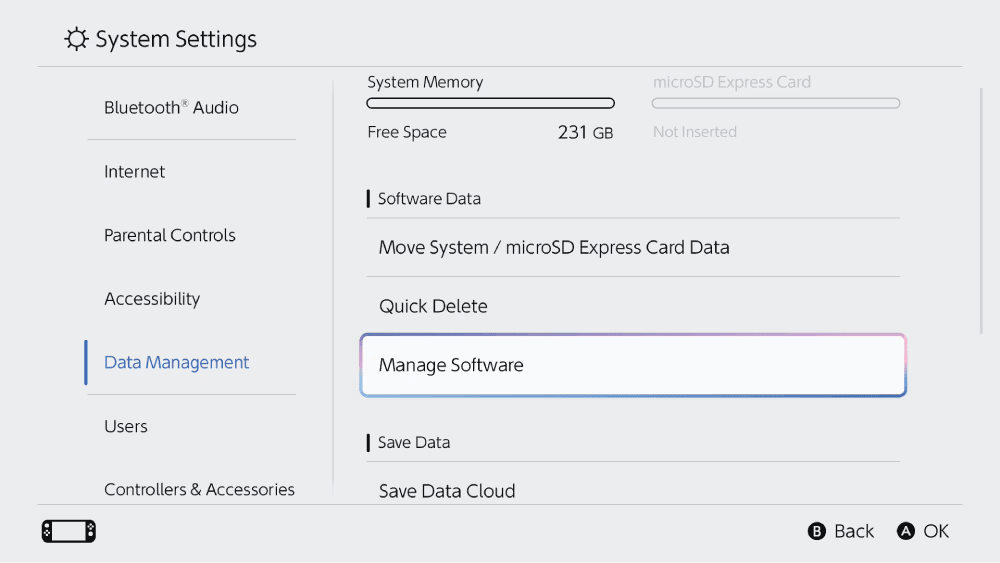
Open System Settings and look at Data Management. Nintendo shows the available space in system memory and, when one is inserted, on the microSD Express card. Read both figures before choosing a capacity. A nearly full console with room left on its card presents a different problem from a console and card that are both full.
For a single game you want to install, compare its download requirement with the free space at the intended destination. List the games you actually want available together, including any DLC you use. A finished game you could download again later is a better candidate for removal than a favorite you want on hand during a trip. Removing downloaded software leaves its save on the console.
Identify the card you already have
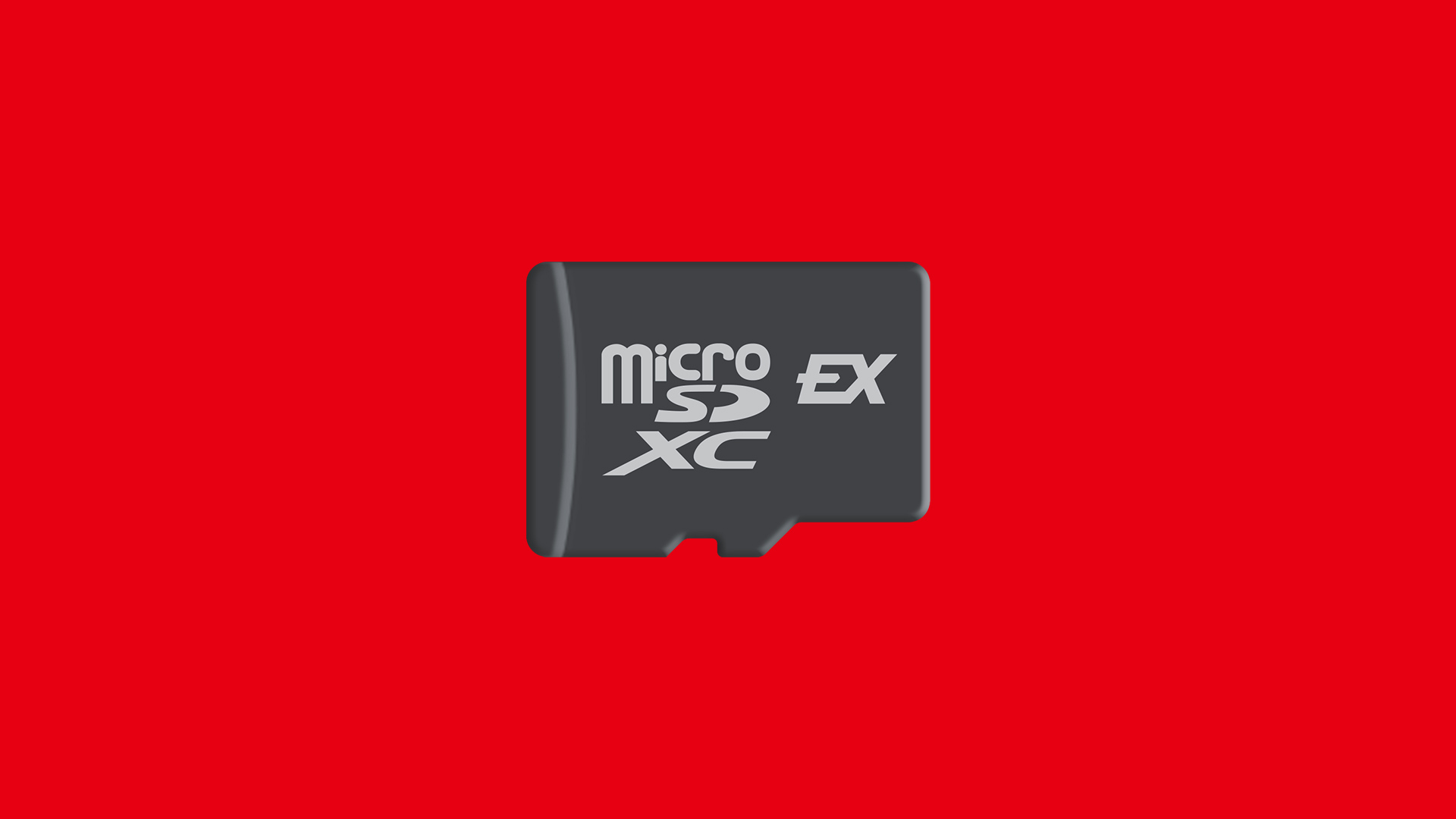
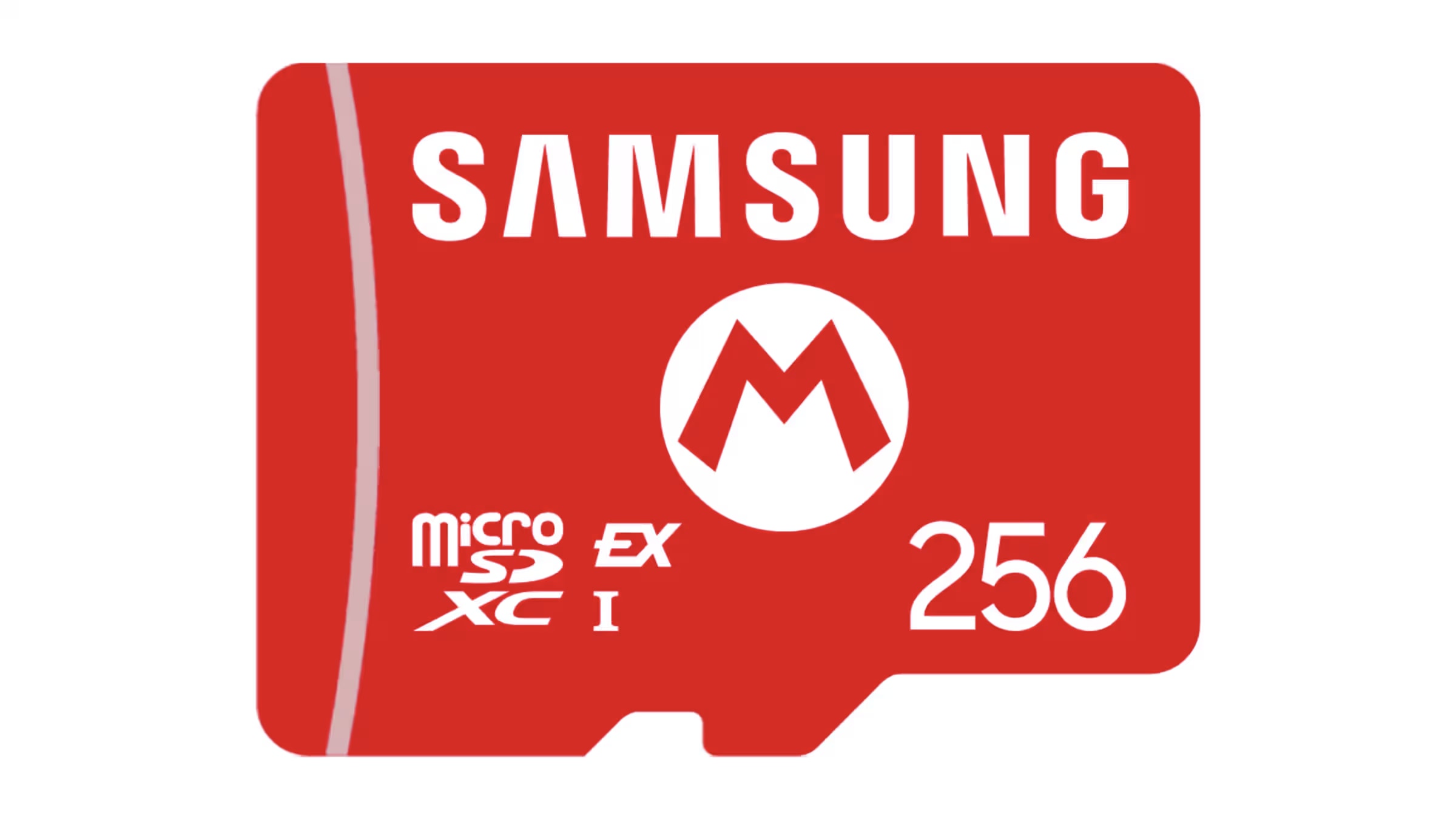
Look at the lettering on the card itself. Nintendo shows the microSD EX mark on its compatibility page. The letters XC also appear on some Express cards, so XC alone cannot settle the question. A familiar shape, a large capacity or the fact that the card worked in your first Switch tells you very little about whether it will hold Switch 2 games.
For game storage, Nintendo accepts cards meeting the microSD Express standard up to 2 TB. An internet system update is required the first time you use Express storage. If the current card qualifies and has room, keep it. If it is an ordinary microSD card from a first-generation Switch, set it aside until you have dealt with any photos and footage on it. A bigger ordinary card would have the same limitation.
Give games, saves and captures separate jobs
Game software is the installation you open to play. Downloaded games, DLC and updates can use Express storage. With a compatible card inserted, Nintendo uses it as the default location for new downloadable software. For something already installed, Data Management can move eligible software between internal memory and the card. Some update data cannot move, and a future update can land in a different location from the one you picked.
Save data records your progress and stays in system memory. Consider a household that plays one downloaded game under two users. Removing the installation to make room leaves the saves in place. When the software is available again, the player should choose the same user to continue their progress. Deleting a user is a different operation and can remove saves associated with that user.
Captures deserve their own check because another download of a game will never recreate a clip you recorded. In Manage Screenshots and Videos you can check the capture destination, copy material between system memory and an Express card, or copy it to a computer using USB. For an ordinary card from your original Switch, Nintendo’s import option brings screenshots and videos into Switch 2 system memory. It does not import playable installations.
Replace one Express card on the same console
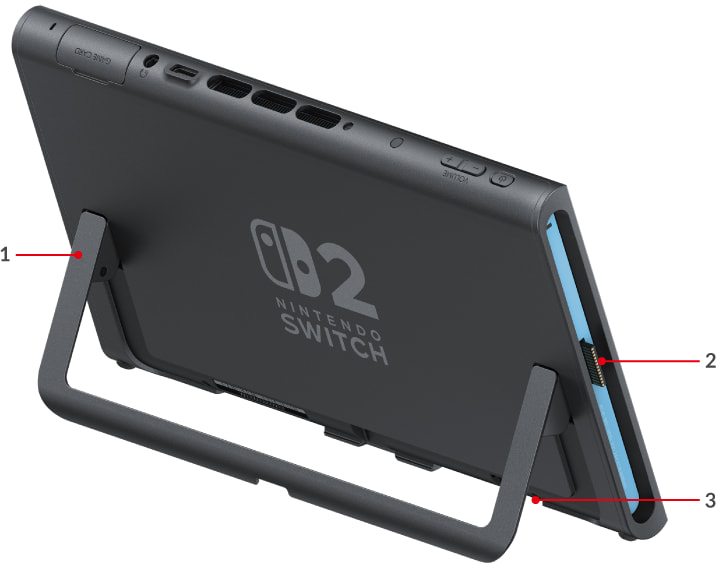
If your existing Express card holds a library you want to carry forward, start with one source card and a replacement large enough for those files. Nintendo directs you to power off the Switch 2 before removing the card. The slot sits behind the adjustable stand. Leave the original card’s contents intact until you have confirmed that the replacement works.
Nintendo documents a whole-folder copy using a Windows computer and a compatible card slot or reader. It cautions that another environment, including a Mac, may produce an incorrect copy. Use its transfer instructions for the details before preparing the new card. If you have two partly filled cards, do not count on combining those software installations into one library later. Nintendo recommends one Express card per console.
Moving a card full of downloads to someone else’s Switch 2 does not give their console a playable collection. For a replacement console, consult Nintendo’s system-transfer guidance separately. For extra room on your existing console, stay with software management or the same-console card replacement. Neither calls for a factory reset.
When a fresh download is the simpler choice
If you only want two or three games on the new card, you may prefer to download those purchases again instead of copying an entire collection. Check that you can get online and select the Nintendo Account that bought each game or add-on. A game you own but never installed on the old card has no files there to copy. Include its download in your space and time budget.
Keep the save separate from the space
Before putting the old card away, check that the games you selected are available, that the right user can continue their game, and that the captures you care about are present where you expect them. If your main concern is a second copy of your progress, check that game’s Save Data Cloud support and your Nintendo Switch Online membership. A larger card solves an installation-space problem. It cannot serve as a spare copy of the save.
Sources and reporting limits
Documentation-based decision guide. No console, card, transfer or restore procedure was tested. Scope is a single Switch 2. No formatting commands, file-system recipe, game-specific cloud guarantee, price or performance claims.
This guide covers one Switch 2 and the storage attached to it. A move to another console or a game-specific save transfer needs its own support instructions.
- Check the free space on a Switch 2 Undated living support page, checked November 5, 2026.
- Which memory cards work with Switch 2? Undated living support page, checked November 5, 2026.
- What a microSD Express card can store Undated living support page, checked November 5, 2026.
- Nintendo Switch 2 data management FAQ Undated living support page, checked November 5, 2026.
- Move software between system memory and an Express card Undated living support page, checked November 5, 2026.
- Manage screenshots and captured videos Undated living support page, checked November 5, 2026.
- Replace one Express card with another Undated living support page, checked November 5, 2026.
- Find the Express card slot on Switch 2 Undated living support page, checked November 5, 2026.
- Redownload Nintendo eShop games and DLC Undated living support page, checked November 5, 2026.
- Check whether a game save can be backed up Undated living support page, checked November 5, 2026.