Steam Link Setup Planning
How it works
This checklist maps host, client, controller, network, privacy, and rollback requirements before any setup. It is not a completed build or performance test.
Plan a living-room Steam Link setup
This checklist maps host, client, controller, network, privacy, and rollback requirements before any setup. It is not a completed build or performance test.
This documentation-based explainer helps readers plan a reversible setup. It does not claim that Gamer-Z-Paradise completed or benchmarked the build.
Planning boundaryPlan the host, client, controller, network, privacy, and rollback path before treating the setup as a completed build.
Host-to-client topology
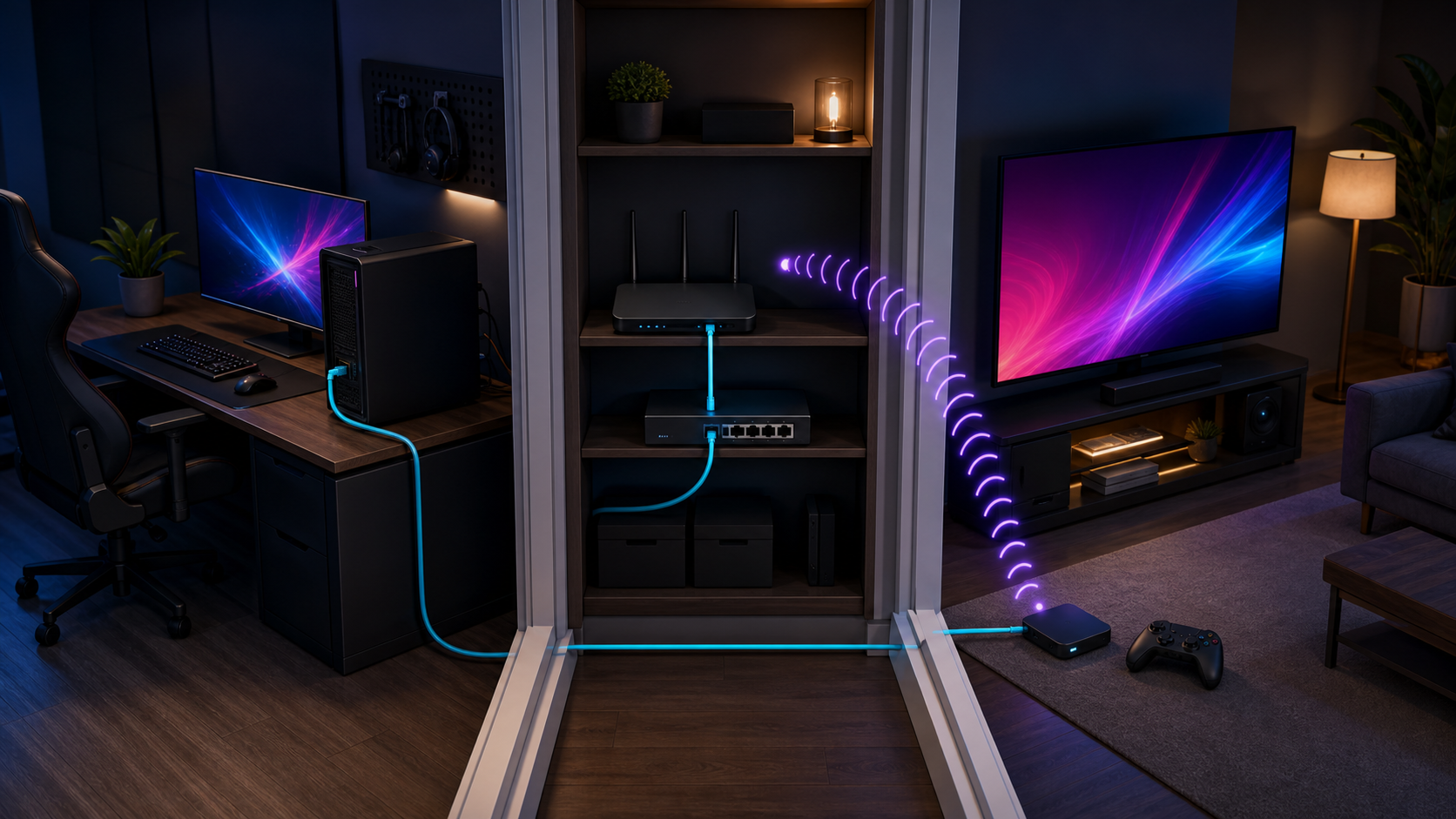
Use this planning order
Confirm the hostLaunch the game locally.
Confirm the clientCheck current Valve support.
Map the networkRecord each network hop.
Verify controlsTest menu navigation first.
Choose a baselineChange one variable at a time.
Preserve rollbackKeep local play and privacy intact.
Topology alternatives
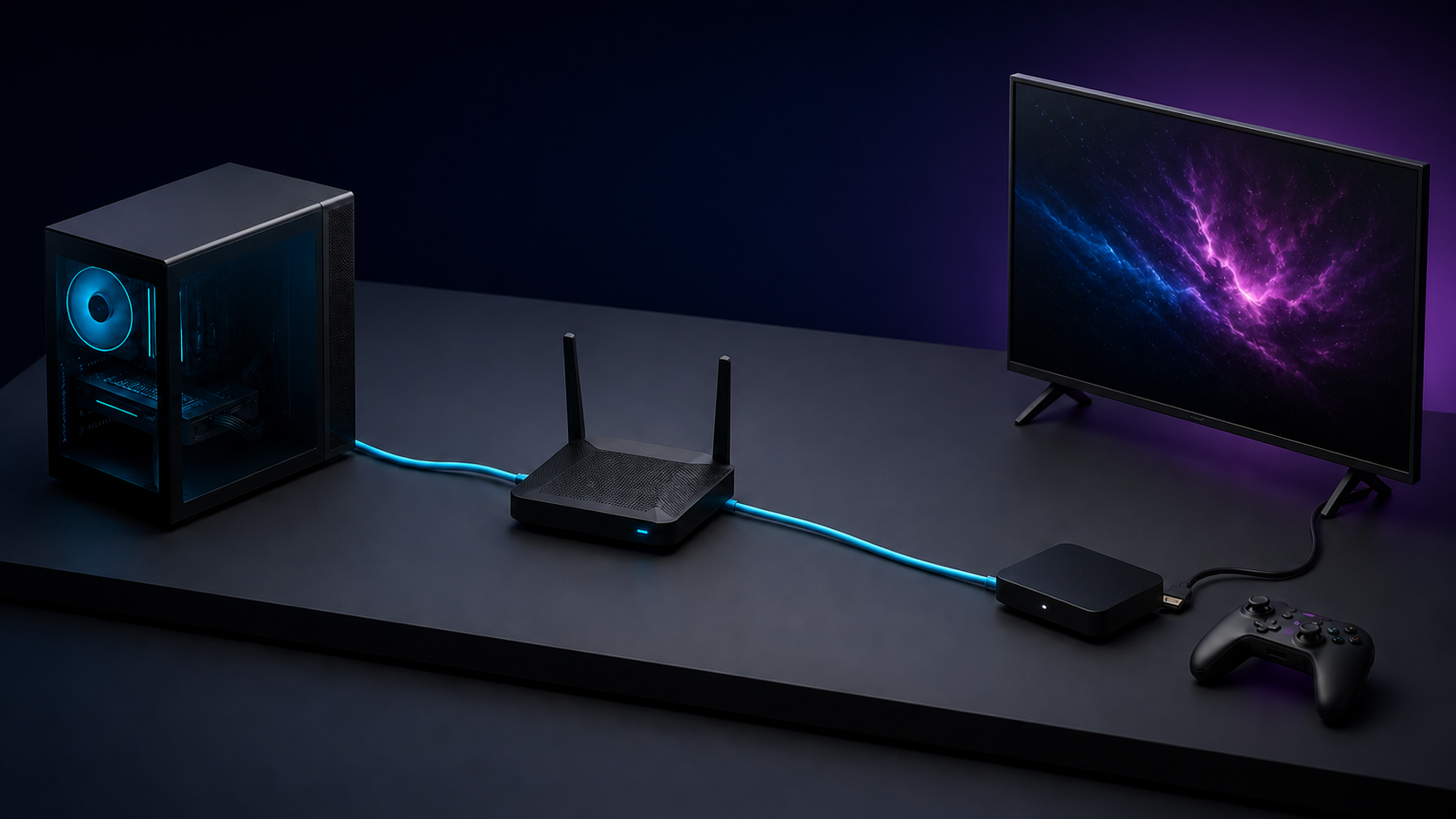 Launch the game locally.Confirm the current client list.Map every connection.Keep local-play rollback.
Six checks before setup
These are planning checks, not measured results.
- Local play firstHostProve the game works before streaming
- Current supportClientVerify the exact destination
- Known pathNetworkRecord wired and wireless hops
- RequiredRollbackKeep a known-good exit
“A documented topology can guide setup. It cannot prove latency, picture quality, or successful execution in a reader's home.”— Gamer-Z-Paradise editorial synthesis
Steam Link can bring a game running on a PC to another supported screen without moving the computer. Valve describes Remote Play as a system that encodes video and audio on the host, sends them to a client, and returns the remote player's input. That makes the host PC, client device, controller, and network one planned setup. If any one of those parts is unclear, the setup may connect without being dependable.
This documentation-based planning explainer makes no latency or image-quality promise. It gives readers a reversible setup sequence based on Valve's current documentation and identifies the details that must be verified in each home.
1. Plan the host and client
The host is the computer that owns or can access the game and runs Steam. Update Steam and the host operating system through their normal trusted channels. Confirm that the intended game launches locally before introducing streaming.
The client can be a supported phone, tablet, TV platform, another computer, or other device listed on Valve's current Remote Play page. The supported list can change, so use the official download destination rather than a third-party installer. Install Steam Link only from the platform's trusted app store or Valve's linked source.
2. Plan the network path
Make a simple map: host to router, router to client, controller to client or host. Record whether each network hop is wired, 2.4GHz, 5GHz, or 6GHz Wi-Fi. Do not change router security, expose ports, or disable a firewall merely to make the first connection work.
Valve specifically recommends a wired host-to-router connection in its published minimum setup for wireless VR streaming. A living-room game stream is not the same workload, so present wiring as a useful troubleshooting baseline, not a guarantee. If wiring the host is practical, it removes one wireless hop from the path. Otherwise, begin with host and client close to the router and move only after the baseline works.
3. Plan pairing and controller validation
Open Steam on the host, launch Steam Link on the client, and follow the official pairing flow. Confirm that the client sees the intended host. Keep account codes and device names out of screenshots.
Connect the controller through a method supported by the client and controller maker. First verify navigation in the client interface. Then launch a low-risk game menu and check every required input. If mapping is wrong, fix the controller path before adjusting stream quality. This keeps control problems separate from network problems.
4. Plan a conservative baseline
Begin with automatic or moderate stream settings. Play a repeatable five-minute section and record visible stutter, audio breakup, dropped input, disconnects, and whether the client changes resolution. These notes are troubleshooting observations, not a benchmark unless a controlled test protocol is later approved.
Change one variable at a time: host wiring, client location, Wi-Fi band, stream quality, then controller connection. Write down the result and revert changes that do not help. Avoid claims such as “zero lag” or “console quality”; Valve says its protocol is designed for low latency, but actual behavior depends on the equipment, game, and network.
5. Plan privacy and rollback
Remote Play Together can transmit game video, audio, voice, and approved inputs to invited players. Valve says only the game, not the desktop, is displayed in that mode, and the host controls keyboard and mouse access. Still close private notifications and confirm invitees before a session. Never share a login, recovery code, or router credential.
Keep the game playable locally. If streaming fails, return to the host, disconnect the client session, and verify that local controls and the game remain normal. A streaming layer should be removable without changing ownership, saves, or network security.
Complete planning checklist
- Launch the intended game locally on an updated host PC.
- Choose a client currently listed by Valve and install Steam Link from an official source.
- Map host, router, client, and controller connections.
- Pair the client with the correct host through Valve's flow.
- Verify controller navigation before launching a game.
- Start with conservative stream settings and a repeatable short scene.
- Change only one network, quality, or controller variable at a time.
- Close private notifications and control invited-player permissions.
- Retain a local-play fallback and undo changes that do not help.
When asking for troubleshooting help, describe the host, client, controller path and symptom without posting account credentials, pairing codes, IP addresses or network names.
Sources checked August 26, 2026: https://store.steampowered.com/remoteplay?l=en https://help.steampowered.com/en/faqs/view/7BE7-BB7D-D904-03AE
Update log
Every substantive change to this article, newest first. Only these move the modified date.
- Update· David Bennett· v13
Clarified that the published article is a planning checklist; no test or build claims changed.
- Update· David Bennett· v12
Moved to PUBLISHED
Further reading
Guide Your next handheld starts with three games.
David Bennett · · 6 minGTA V · Download help GTA V: Where to Download
David Bennett · · 4 minOwnership ledger · Free, paid, unknown Witcher 3: Free Upgrade vs Paid Expansion
David Bennett · · 2 min